Angular Best Practices – Make Angular Application Development Easier

Making an Angular application is not enough. Keeping the code simple and well-maintained is equally important. For doing so, you need to stick to some of the Angular best practices. Not does it only helps in making the application cleaner but also boosts the performance of the same.

Angular boasts charting on the list of top 10 web development frameworks in 2018 as the leading front-end framework. Though Angular is one of the leading web application frameworks, it can also be used for building native mobile and desktop applications.

Considering the popularity and importance that Angular has accumulated, now is the best time to learn Angular if you haven’t done it already. Anyways, if you are already developing apps using Angular then must know how to do it better to remain competitive in the rapidly-changing realm of programming.

As such, we are here to share with you some of the best Angular practices suggested by experts. In order to make the most out of this article, you need to have at least a basic understanding of Angular. Considering you have that, let’s advance to the list of 12 best practices for Angular development.

Angular Best Practices

Angular Best Practices

1. Add Caching Mechanisms

Simply, having a caching mechanism in place avoids unwanted API calls. Responses from some of the API calls don’t change at all. In such scenarios, adding a caching mechanism allows for storing the specific value from the API.

Adding caching mechanisms ensures that the same information is not downloaded time and over again. Moreover, making the API calls only when required and avoiding duplication results in a speed boost for the application. This is because there is no need to wait for the network.

2. Benefit from Lazy Loading

Lazy loading is loading something only when it is required. Whenever possible, try to lazy load the modules in the application. The benefit is twofold. First, it reduces the size of the application and second, as only the module that is required is loaded and not the unrequired ones, application boot time improves.

3. Deploy the Right Flattering Operator

Instead of using a multitude of operators when a single operator can suffice reduces the code size. As different types of operators handle observables in different ways, deploying the incorrect operator might lead to unwelcome application behavior.

Therefore, it is important to use the right flattering operator, such as concatMap and mergeMap, while dealing with observables.

4. Don’t Forget to Make Use of Angular CLI

It is highly recommended to make use of the Angular CLI while developing an Angular project. There are several reasons for this, including a boost in productivity. Angular CLI flaunts an enormous set of commands for completing a number of tasks.

Not only the Angular CLI creates components faster but also automatically references the same into their own modules. Moreover, it ensures compliance with the naming convention so that you don’t have to worry about doing it on your own.

5. Don’t Miss Out a Chance to Use Lifecycle Hooks

Whenever possible, use lifecycle hooks. Any component has a lifecycle, which is managed by Angular. Angular creates, renders, creates children, and renders children of components. Further, it checks when a component’s data-bound properties change and penultimately destroys it before finally removing the same from the DOM.

Lifecycle hooks provide the visibility into such key life moments as well as the ability to act when they occur. Some of the lifecycle hooks and their desirable uses include:

  • ngOnChanges () – Used for executing logic inside child components prompted by the modification of decorator parameters
  • ngOnDestroy () – Used for the need to perform a cleanup of resources when the component is destroyed
  • ngOnInit () – Used when some data is required to be fetched from a database as soon as the component is instantiated

Know more about Lifecycle hooks.

6. Ensure Using Lint Rules

In order to avoid doing something that can potentially lead to the rise of some issue later, Angular have lint rules. When a lint rule is in place and you do something wrong, an error will quickly pop-up and save the day for you. You can easily configure various lint rules in the tslint.json file.

Using lint rules in the code enforces consistency in the application as well as enhances readability. Some of the lint rules even come equipped with fixes for resolving the very issues that they correspond to. Moreover, you can write your own lint rules using TSQuery.

7. Isolate API Hacks

Several Angular APIs are plagued by bugs and hence, require fixes. However, it is better to isolate API hacks in one place rather than adding them to the components where they are required. The API hacks can be isolated in a service and used from the component.

But, why should you do it? Because doing so keep the hacks stay closer to the API. In addition to having all the hacks at one place, which makes fixing them easier and convenient, the action reduces the total code that is dealing with the unhacked code.

8. Keep your Application DRY (Do not Repeat Yourself)

Ensure that the same code is not copied in multiple sections of the complete codebase. In some cases, it might be required to change some logic in a particular code section. However, having identical code jotted down in multiple locations means that the change needs to be made at each and every section.

In addition to being a redundant job, this can lead to potential bug occurrences. Having a specific code at only one location not only makes the testing process easier but also improves application speed and performance.

9. Switch to HttpClient from HttpModule

Past Angular 4.3, there is a better way for handling HTTP requests via the HttpClient library. Although the HttpModule library is adequate for handling HTTP requests, it is highly recommended to make a switch to the HttpClient.

This is because aside from all the functionality, using HttpClient brings a number of benefits to the table. For instance, the HttpErrorResponse class in the HttpClient library facilitates error handling. Additionally, HttpClient grants access to interceptors, which allow intercepting HTTP requests, and offers the ability to listen to progress events.

10. Unsubscribe from Observables

While subscribing to observables, ensure that appropriate unsubscribes to the same are also made. As the observable stream is left open, such as after a component is destroyed or the user has navigated to some other page, not unsubscribing from observables might lead to undesired memory leaks.

So, how to unsubscribe from observables? Simple, by using operators such as take and takeUntil. Formulating a lint rule for the detection of observables that aren’t unsubscribed is highly recommended.

11. Use The trackBy Function

Using the trackBy function with the ngFor directive for looping over an array in templates return a unique identifier for each item in the array. When an array is changed, Angular re-renders the complete DOM tree. However, this isn’t the case when using the trackBy function.

The trackBy function allows Angular to know those specific elements that have changed. Hence, it will only make DOM changes for that particular element or set of elements.

12. When Using RxJs Operators, Use Pipeable Operators

This enables benefitting from the tree-shakeable ability of pipeable operators. Simply, it means that rather than the entire code, only the code that is necessary for execution will be included when these operators are imported. Moreover, another advantage is that it makes the identification of unused operators in the files easier.

Let’s Wrap it Up!

Developing applications is a craft and there’s always some room for improvement. Adhering to the aforementioned Angular best practices will make your Angular application development life easier. The less buggy your Angular application is, the better is the chances for performance and productivity to mushroom.

The official Angular style guide is very important for any web developer looking to champion in the craft of Angular development. If you haven’t gone through it yet, now might be a good time to do so. Check it here!

The post Angular Best Practices – Make Angular Application Development Easier appeared first on The Crazy Programmer.

from The Crazy Programmer https://www.thecrazyprogrammer.com/2018/11/angular-best-practices.html
Working with Virtual Environment for Django Project

In this tutorial we’ll talk about virtual environment for django project.

Here we’ll discuss about:

1. What is virtual environment and why to use it?
2. How to install virtual environment for django project?
3. How to use virtual environment in django project?

So let’s start with our very first question.

What is Virtual Environment and Why to Use it ?

Let’s say you have worked in django extensively. So for sure, you may have created some projects with some previous versions of django. Now you want to install latest version of django in your computer. So the first problem you’ll encounter with is that your new version of django is not compatible with the projects you’ve created in previous version of django. For example – current version of django (django 2.1) requires Python 3.4 or above in your system. So if you were using Python 2 and a lower version of django, then there will be some problems right?

Here the term virtual environment comes into picture. Using virtual environment, you can make a different environment for each project that you’re working on. Let’s say you have a project and you want to work with python 3 and django 2.1. On other hand you’ve another project where you want to work with Python 3 and django 1.11.

So in that case, we’ll create two virtual environments for both of the projects and install python 2 and django 1.11 in one virtual environment and python 3 and django 2.1 in another. Isn’t it awesome?

How to Install Virtual Environment for Django Project?

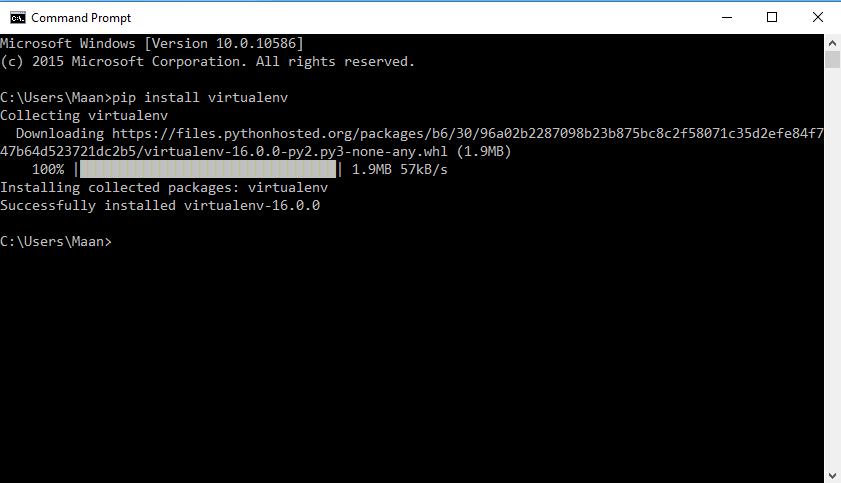
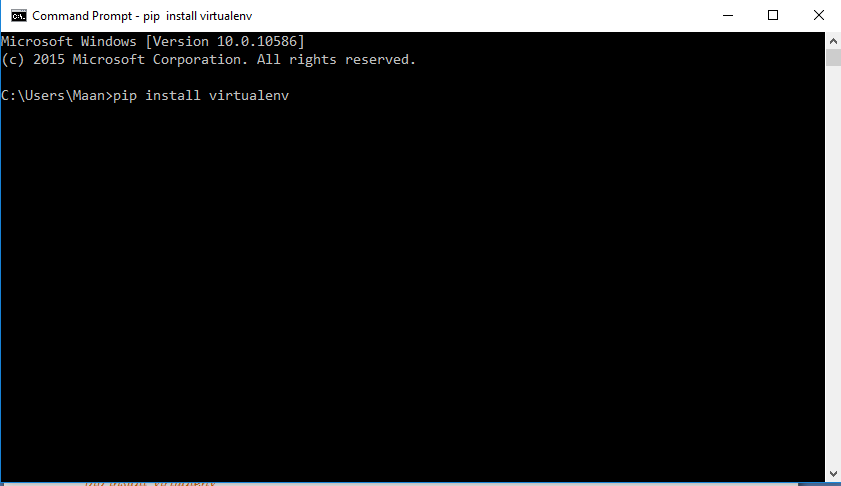
To install virtual environment we’ll use pip here. Firstly open your command prompt/terminal and type the command below:

pip install virtualenv

django virtual environment 1

django virtual environment 2

That’s all we have to do install virtual environment.

To see the version of the virtual environment you can use the command:

virtualenv –version

Note: If you’re using Mac or Linux (Ubuntu), where you’ve both of the python 2 and python 3 installed in your system. You can use pip3 to install for python 3 and pip to install for python 2.

How to Use Virtual Environment in Django Project?

After installing virtual environment (Virtualenv), you want to work with django 2.0.1, then you have to install django 2.0.1 in your virtual environment. Let’s see how to do it.

Create Virtual Environment

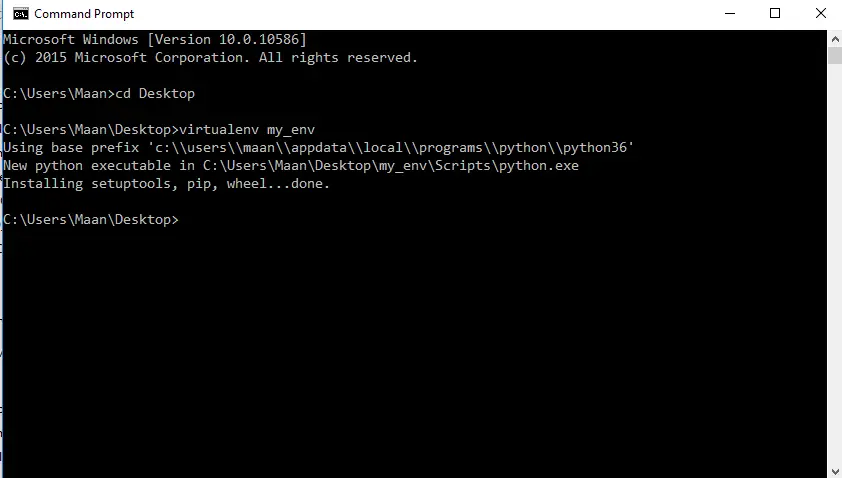
To create virtual environment open command prompt/terminal and navigate to the directory where you want to create your django project. Let’s say we want to create our project at Desktop then we’ll navigate to desktop and then type the command below.

virtualenv env_name

Here you can name your virtual environment as you want.

django virtual environment 3

After creating virtual environment we have to activate the virtual environment.

Activate Virtual Environment

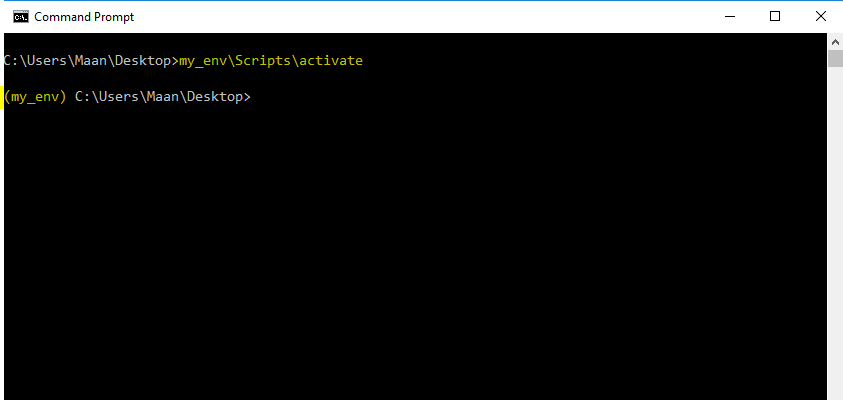
To activate virtual environment you’ve to run the batch file created inside the \env_name\Scripts\activate. So here our virtual environment’s name is my_env, so we’ll type the command below.

my_env\Scripts\activate

django virtual environment 4

So after typing this command you’ll be entered into the virtual environment that you’ve created.

Now here we can install a specific version of django (for example – django 2.0.1).

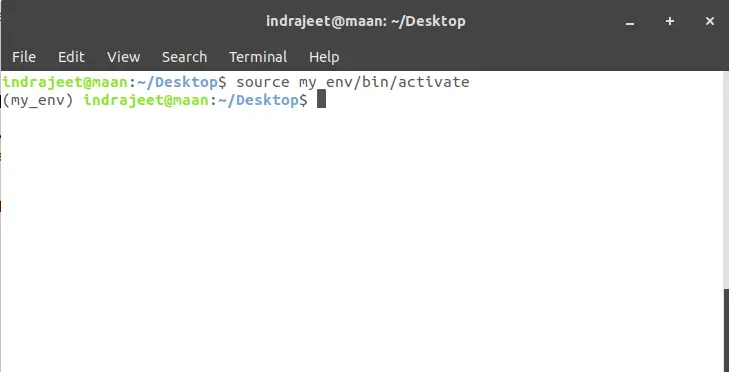
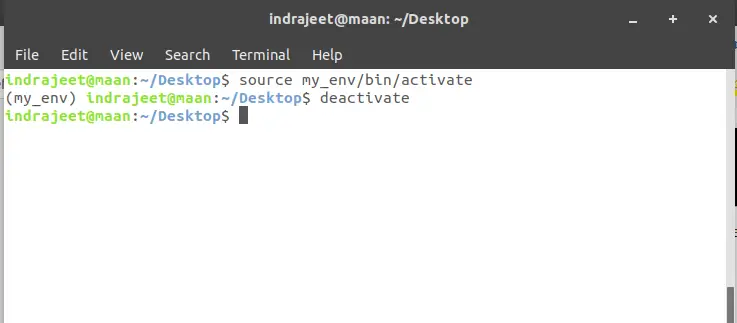
Note: As Batch files are not supported in Linux or Mac. So to activate the created virtual environment, you can use the command below.

source my_env/bin/activate

django virtual environment 6

Install Django in Virtual Environment

Now we’re in the virtual environment, so if we install anything inside this environment, it won’t affect our system’s environment.

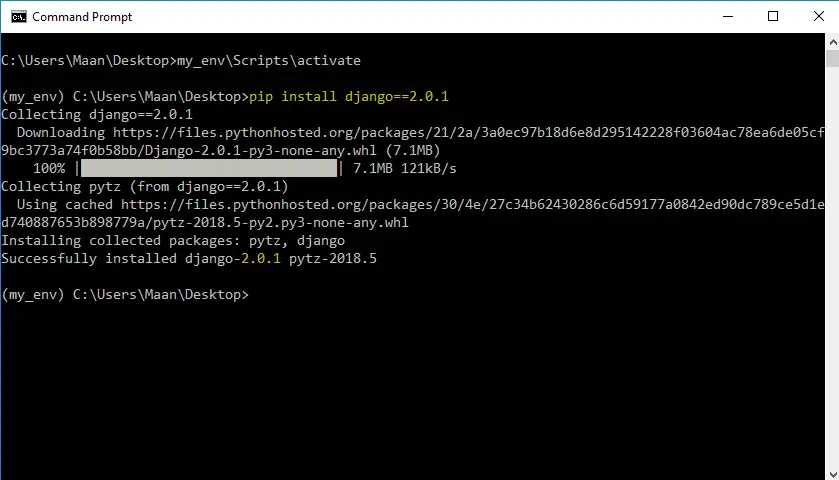
To install any version of django (example – django 2.0.1) use the command below.

pip install django==2.0.1

django virtual environment 5

Now we have django 2.0.1 in our virtual environment. So you can create, run, test your django 2.0.1 projects in this environment.

Deactivate Virtual Environment

django virtual environment 7

To deactivate virtual environment type the command below.

deactivate

That’s all. If you’ve any problem related with this article then please let us know in comment box. We’ll reply as soon as possible.

The post Working with Virtual Environment for Django Project appeared first on The Crazy Programmer.

from The Crazy Programmer https://www.thecrazyprogrammer.com/2018/11/working-with-virtual-environment-for-django-project.html

Upgrading the DakBoard Family Calendar with Raspberry Pi Zero W and Read Only filesystem

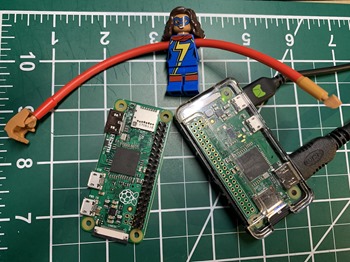
Raspberry Pi Zeros are SMALLEarlier this week I built a Family Calendar using a used flat screen monitor and a Raspberry Pi 3 I had lying around and documented it in my post How to build a Wall Mounted Family Calendar and Dashboard with a Raspberry Pi and cheap monitor.

Eric Brown added two great comments (the comments on my blog are always better than the content!) He said:

  • You can save power & money by using an Pi Zero W instead.
  • This is likely overkill, but I took the time to get the Pi Zero to mount the SD card read-only and do all the writes to a RAM disk.

Eric said “RPis are surprisingly sensitive to power glitches, and will often corrupt the SD card” and that “after mounting the SD read-only, my DakBoard has been running stably for months; before doing that, it corrupted the SD card within 6 weeks.”

While I haven’t had any issues with my Raspberry Pis, this seemed like a fun “version 2” of the calendar to make with the kids. Worst case scenario? Now I have LCD family calendars!

You’ll recall I commented about how important the Spouse Acceptance Factor is whenever introducing new technology into the house.

It has to just work. If my Spouse doesn’t like the idea or find its not reliable, the SAF (Spouse Acceptance Factor) will be low and they’ll want to get rid of it. All it takes is one “why isn’t this working” and I’m dead in the water.

I checked Amazon and found a number of Raspberry Pi Zero W (W is for Wireless, important!) Kits for around US$20. You can see in the picture above how SMALL a Raspberry Pi Zero W is (with LEGO Miss Marvel for scale).

Get the HDMI cables as flush an sanitary as possible

If you have the cables, power supplies, and don’t need the headers and extra stuff, I’ve seen them as low as $10. It’s very important to note that a Raspberry Pi Zero W does support HDMI but it has a MINI-HDMI female connector. You’ll need a mini-HDMI to HDMI adapter or a mini-HDMI to HDMI short cable.

Here’s another aside. Did you know there are a LOT of different HDMI connector orientations? Sure, you could just loop a big old 6 foot HDMI cable back there, but where’s the fun in that? There are micro HDMI D1,D2,D3 that describe 90 degree and 270 degree rotations of the male. If you want to be really flush, consider a cable (for example like a C2 to A2) that is usually used in drones. This would allow you to mount the Pi Zero W flush against the back of the monitor – or even better, inside the monitor or a wooden picture frame!

Dakboard

Get the Raspberry Pi Zero W on your wireless and avoid the trouble of keyboards and mice!

Pi Zero Ws are so small that they don’t have a regular USB connector. There is one for power and one that is “USB OTG.” If you want to connect a mouse and keyboard directly to the Zero you’ll need this USB OTG Micro to Type A Cable and/or a powered USB hub.

OR!

Save money and prep your Raspberry Pi Micro SD Card with SSH turned on by default and your Wireless Network enabled by default! Then you can set it up remotely as a DakBoard/MagicMirror Family Calendar.

  • Download the Image for Raspbian Stretch. You’ll want the desktop version (not Lite) because this IS a visual project, not a headless one!
  • I recommend Etcher for burning images to SD Cards. It’s free.
  • Raspberry Pi Zero W and a 1A+ micro USB power supply
  • Cheap micro SD Card. They should include an adapter to plug it into your main computer to prepare.
    • Create an empty file called “ssh” on the prepared Micro SD Card before you put the card in the Raspberry Pi
    • Make a file called wpa_supplicant.conf with Linux line feeds (LF, not the default Windows CR/LF) with content like this (and your own country code)
country=us

update_config=1
ctrl_interface=/var/run/wpa_supplicant

network={
scan_ssid=1
ssid="YourNetworkSSID"
psk="NETWORKPASSWORD!"
}

This will cause the Pi to get on the network on boot up which should allow you to SSH over to it directly, thereby avoiding any trouble with keyboards and mice and the Pi Zero W.

If you DO end up wanted to connect the keyboard and mouse, you’ll want a keyboard/mouse setup that is all in one with just one USB adapter or you’ll need a Powered USB Hub. This should be temporary as you get the Pi prepared.

Make the Raspberry Pi Zero W readonly – after it’s been configured with DakBoard

Once I had the Pi Zero W all prepared I went around the net looking for tutorials to make it readonly. You’re basically causing Linux to mount the SD Card readonly and then do all writes to a RAM Disk that will ultimately be tossed whenever you (rarely) reboot. Get it perfect before you go readonly as it’s a small hassle to switch back. Or you can pull the card out and mount it on your other computer then return it. Still, not awesome.

Eric from the comments pointed me to a Raspberry Pi Jesse tutorial, but I tried it and it didn’t work for me, likely because I’m on Raspbian Stretch, a newer version. There’s a LOT of choices and ways to do this but the best tutorial I found was on the page for Domoticz, a n open source Home Automation system which looks, as an aside, awesome and something I need to check out in the future!

For now, I followed these instructions on Setting up overlayFS on Raspberry PI (the “overlay” being the file system you’ll write to but it’s a fake, the writes are going to one folder and the two foldkers (one read-write and one read-only are overlaid over each other). This allowed me to make a Raspberry Pi Raspbian Stretch system Readonly on my Pi Zero W.

I followed the instructions exactly, only skipping the parts like “Modify domoticz service” that didn’t apply. When I run “mount” I can see the main file system is read-only and the others are overlaid and read-write.

pi@dakboard2:~ $ mount

/dev/mmcblk0p7 on / type ext4 (ro,noatime,data=ordered)
snip!
ramdisk on /var_rw type tmpfs (rw,relatime)
ramdisk on /home_rw type tmpfs (rw,relatime)
overlay on /home type overlay (rw,relatime,lowerdir=/home_org,upperdir=/home_rw/upper,workdir=/home_rw/work)
overlay on /var type overlay (rw,relatime,lowerdir=/var_org,upperdir=/var_rw/upper,workdir=/var_rw/work)

So far so good! This will make a smaller and lower power Family Calendar that will hopefully be more reliable as well! Thanks Eric from the comments!


Sponsor: Preview the latest JetBrains Rider with its Assembly Explorer, Git Submodules, SQL language injections, integrated performance profiler and more advanced Unity support.


© 2018 Scott Hanselman. All rights reserved.


from Scott Hanselman’s Blog http://feeds.hanselman.com/~/582033630/0/scotthanselman~Upgrading-the-DakBoard-Family-Calendar-with-Raspberry-Pi-Zero-W-and-Read-Only-filesystem.aspx

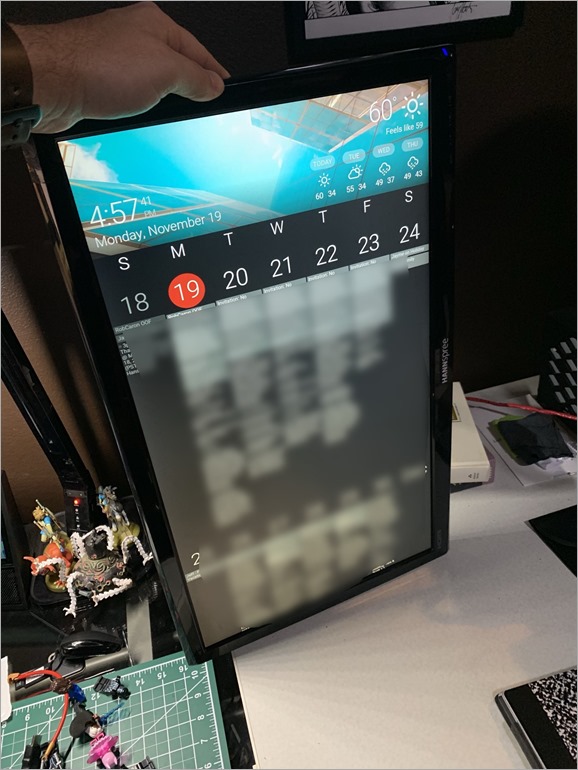
How to build a Wall Mounted Family Calendar and Dashboard with a Raspberry Pi and cheap monitor

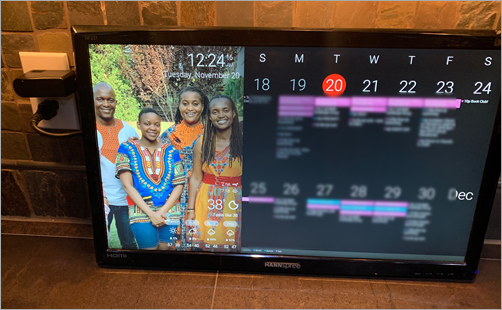
Glanceable DashboardI love dashboards. I love Raspberry Pis (tiny $35 computers the size of a set of playing cards). And I’m cheap frugal. I found a 24″ old LCD at Goodwill (a local thrift shop) and bought it but it’s been sitting unused in my garage.

Then I stumbled on DakBoard. The idea is simple – A wifi connected wall display for your photos, calendar, news, weather and to-do.

The implementation is simple genius. It’s a browser that starts up full screen (kiosk mode) and just sits there and updates occasionally. DakBoard provides the private webpage and tools to make that happen. You can certainly build this yourself with any number of open source tools. I chose DakBoard because it was simple, beautiful, and I was able to get the whole thing done in less than an hour. I’m sure I’ll spend many hours tweaking it through. There’s also the very popular MagicMIrror platform, so lots of choice and power in this space!

What are some considerations?

  • You may want to turn it off on a scheduled to save power and the screen
    • cronjob – turn it off on a schedule
    • sensor – turn it on when something (your alarm, nest, thermostat motion detector attached to GPIO, etc) detects your presence)
  • It has to act like an appliance. If you are messing with it to keep it alive, it’s not an appliance, it’s another computer to manage.
  • It has to just work. If my Spouse doesn’t like the idea or find its not reliable, the SAF (Spouse Acceptance Factor) will be low and they’ll want to get rid of it. All it takes is one “why isn’t this working” and I’m dead in the water.
  • Finally – What do you want to show?

Someone asked me – “What would I want to put on my dashboard other than a calendar? I don’t see why this is useful.”

What would you put on a Glance-eable Display?

Family Calendar(s), movie times, temperature, news, my blood sugar, disk free on my NAS, TV schedule, family photos, commute traffic, album releases, homework due soon, family events, trips, flight status, music playing now, literally anything you want as a glance-able display. 

Glanceable Dashboard

Philosophy

You’ll want to ask yourself, is this just an iPad on the wall? I’d propose not. In fact, I’d say this is a Wall Mounted Glanceable Display – a personal dashboard – not an interactive thing. I want the family and kids to just stop by, note important information and move on.

It’s also worth pointing out the a horizontal monitor on the wall looks like, well, a monitor on the wall. But somehow when it’s Portrait it’s dramatic. It’s not something we are (yet) used to seeing. I may try this out in a few ways, or even make a few of these displays!

How to Build a Raspberry Pi-based Family Calendar

It’s pretty easy! I used the DakBoard Blog but I had most of the stuff already.

  • Get a $35 Raspberry Pi 3. The 3 is fast and includes Wifi so you don’t need an extra adapter.
  • I like a 2.5A powersupply but some folks say you can run the Raspberry Pi off the monitor’s USB power – IF that power can put out at least 1A. 500mA will likely cause instability. It depends on if you want to try to get the whole thing down to one power cable.
  • Cheap SD Card – 8 gigs is fine, but get whatever works for you. This doesn’t need to be awesome.
  • A 1 foot HDMI cable. You’re gonna mount the Raspberry Pi to the back of the monitor and hide it so you want the cable to be as small as possible.
  • And finally – a 24″ ish (smaller is fine) LCD (IPS is nice) monitor with smallish bezels and HDMI inputs that go out to the side (NOT directly out the back) as you want this flush on the wall.
    • Think about how you’ll mount it. You can take the back off the monitor and use hanging wire OR use a flush VESA mount.

Install Raspbian on the Raspberry Pi. I use Noobs to bootstrap my install as it’s super fast and easy. Go through the standard setup. Make sure you’ve set up:

  • Wifi login
  • Timezone
  • Boot to Desktop automatically
  • install chromium via “sudo apt-get install -y rpi-chromium-mods”

Then you make sure that Chromium starts up full screen, the mouse is hidden, and we’re looking at the dashboard! It’s super important you don’t have to touch it. It’s an appliance, right?

sudo nano ~/.config/lxsession/LXDE-pi/autostart
@xset s off
@xset -dpms
@xset s noblank
@chromium-browser --noerrdialogs --incognito --kiosk http://dakboard.com/app/?p=YOUR_PRIVATE_URL

Then you can set up a cronjob if you want to turn the Pi’s screen on and off on a schedule. Using rpi-hdmi.sh you can make a crontab -e that looks like this:

# Turn HDMI Off (22:00/10:00pm)
0 22 * * * /home/pi/rpi-hdmi.sh off
# Turn HDMI On (7:00/7:00am)
0 7 * * * /home/pi/rpi-hdmi.sh on 

My family uses Google Calendar (GSuite) to manage hanselman.com, but I use Outlook at work. I also have a lot of business/work crap in my calendar that the family doesn’t need to see. So I have two problems here, filtering, and appointment movement between Work and Home.

My wife and kids use Google Calendar and it’s their authoritative source. My work calendar is MY authoritative source, so I want to sync Outlook->Google but ONLY including Personal/Podcasts/Travel categories. I categorize in Outlook at work, and then those appointments that are appropriate for the family calendar get moved over. Then the Family Calendar dashboard includes color coordinated items for Mom, Dad, Kid1, Kid2. The kids include homework that’s due as appointments.

I use the Outlook Google Calendar Sync open source project to do this calendar movement for me. It does require Outlook and is a client solution so if you have a better idea let me know.

GOTCHA: I have been using Google Calendar for YEARS. I have also been using sync tools like this for years. As such, I was noticing that sometimes DakBoard would timeout asking for my Google Calendar’s ICS file. It would take minutes. So I requested it myself and it was 26 megs. It’s clear that Google calendar doesn’t care deeply about iCal and that’s disappointing. This could easily be solved if they’d support some kind of OData like URL-based query for fromdate=, todate=. In this case, the DakBoard was getting 26 megs over and over to just show a few weeks of appointments. I literally had appointments from 2005 in the calendar. I decided that since I’d declared Outlook my authoritative source for my calendar that I’d take an archive (one time snapshot) of my iCal and then delete all my calendar items from Google Calendar and re-sync, one way, from the authoritative source, going back 1 year. I’m likely a rare case but it’s worth noting in case you bump into this.

All in all, this can easily be done in a short few hours if you have a Pi and a monitor. The time will be spent making it “sanitary.” Making the cables perfect, hanging it on the wall, hiding the cables, then tweaking the screen to be perfect.

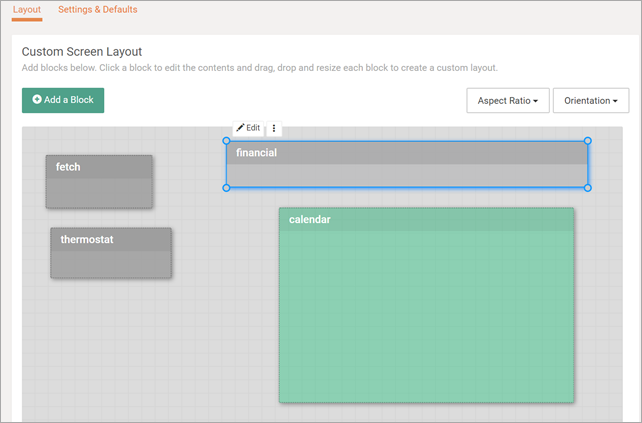
Editing screens on DakBoard

DakBoard has a free option that works great, or a Premium subscription that gives you even more control. Again, it depends on your web/art ability, and your patience. This is a fun new world that I’m excited to get involved with and my family is already stoked about this new display as we enter the holiday season.


Sponsor: Preview the latest JetBrains Rider with its Assembly Explorer, Git Submodules, SQL language injections, integrated performance profiler and more advanced Unity support.


© 2018 Scott Hanselman. All rights reserved.


from Scott Hanselman’s Blog http://feeds.hanselman.com/~/581367940/0/scotthanselman~How-to-build-a-Wall-Mounted-Family-Calendar-and-Dashboard-with-a-Raspberry-Pi-and-cheap-monitor.aspx

iOS Data Recovery Made Easy with iSkysoft Toolbox: Recover Lost Data in Seconds

We all have experienced that dreadful moment where we lost an important file from our iPhones. It is surely frustrating to lose important files that are of official, academic or personal importance. Imagine you in a scenario where you lost that report or thesis that you were working on, scary right?

And we all have scoured the internet to get an iOS data recovery software that can make all those hardships go away. Then again, the softwares available on the internet are either unreliable or do not work at all.

Now, we present to you the only software you need for all the iOS-related problems in your life – The iSkysoft toolbox. it is the easier way to perform an iPhone recovery process.

The iSkysoft Toolbox is an all in one mobile management suite that comes with a plethora of features which can help you out when your iOS devices fail on you. The Recover option in the Toolbox is an advanced iOS Data recovery module that can restore deleted or lost files.

The iOS data recovery option fits a variety of use cases, as it can help you recover data from the following;

  • Accidental deletion of a file
  • Data lost by factory resetting the device
  • Data lost by a system crash
  • Lost device
  • Data deletion from water damage
  • Device lockdown due to password issue
  • Data lost due to iOS update

The software can restore images, videos, messages, app data, documents, etc. with the click of a button!

The reason why it’s mentioned iOS devices instead of a specific device is that the iSkysoft Toolbox iOS Data recovery works on more than just the iPhone range. It can help you recover data from iPad and iPod Touch with ease. Do not worry about compatibility issues as the software is compatible even with the latest iOS 12.

Maximum Effectiveness in Using 3-Stage Recovery

Unlike the iOS data recovery softwares we see on the internet, iSkysoft takes a methodological approach towards recovering iOS data, thereby significantly increasing the rate of success.

1. Data Recovery from IOS Device

This mode of recovery is used when the files to be recovered are stored in the native device storage. The device data recovery is the feature that we may use the most because it is very effective at restoring storage data like images, documents, music, and other files.

2. Data Recovery from iTunes Backup

If you need to restore data that has been saved on iTunes to your iOS device, this is the option to choose. Unlike iCloud, iTunes doesn’t sync between every iOS device hence making it harder for users to recover lost files. With iSkysoft, your data is just a click away.

3. Data Recovery from iCloud

If you wish to restore data from your iCloud account to your existing or new device, then the iCloud recovery option will retrieve your iCloud data and transfers it to your iOS device.

The capabilities of iSkysoft don’t just end with images, video, and docs, with the new version of the Toolbox, users have access to one of the most requested features – Message recovery. The best part of the new software is that can recover deleted messages on iPhone without a backup file. So if you forgot to backup your messages, don’t worry, the Toolbox has got your covered.

The message recover feature supports all the latest messaging platforms and apps like:

  • Text messages,
  • SMS messages,
  • MMS messages,
  • iMessage,
  • WhatsApp
  • Message attachments Etc.

Legacy support is also available with iSkysoft Toolbox as the software supports all the iOS versions from iOS 4.

How To Recover Deleted Messages On an iPhone Without Backup

The following is a step by step by step guide to recover messages on your iOS device without backup.

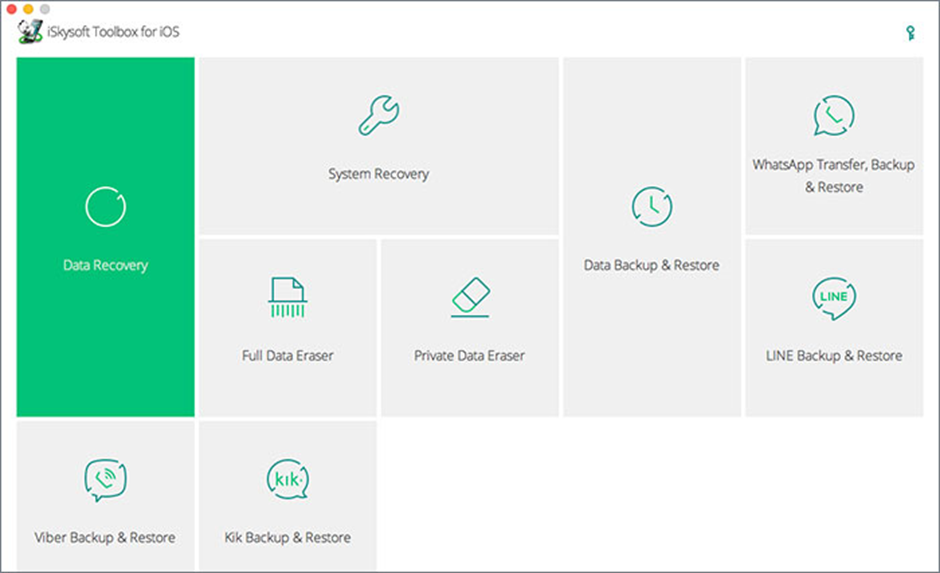
Step 1: Connect your iOS device to your computer and launch the iSkySoft Toolbox. Select Data Recovery from the list of available options.

iOS Data Recovery Made Easy with iSkysoft Toolbox 1

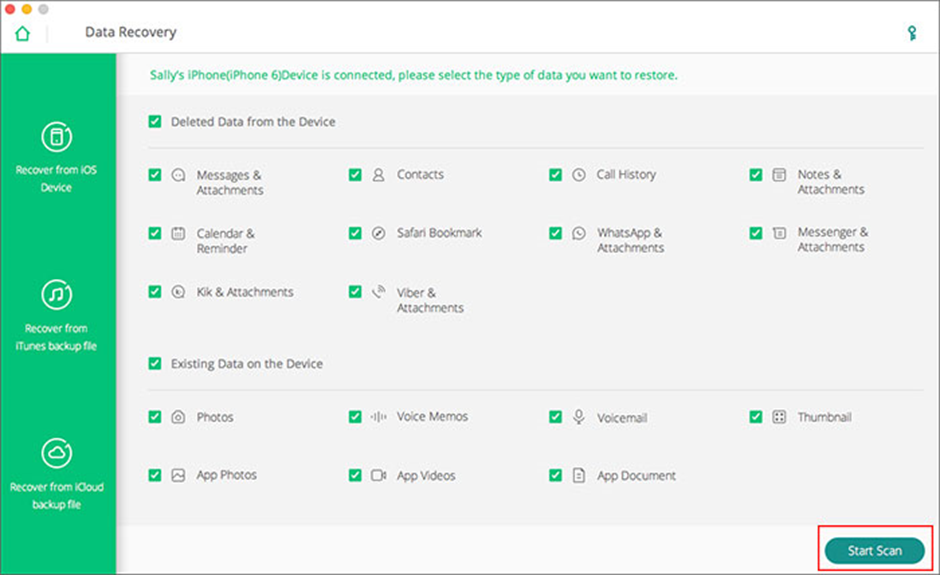
Step 2: A host of options related to iOS data recovery will be shown on the window. Choose “Messages & Attachments” to start the recovery process and click “Start Scan”.

iOS Data Recovery Made Easy with iSkysoft Toolbox 2

Step 3: The Toolkit will start scanning the device for deleted and lost messages. After the scan, the list of messages that can be recovered will be shown as a list. The user can choose to either recover all of them or select them per requirement. Click “Recover to Device” or “Recover to Computer” to start the file transfer.

iOS Data Recovery Made Easy with iSkysoft Toolbox 3

That is all there’s to it! Three simple steps to get back the important messages that you had lost from your device. Users will also have the option to move the recovered messages to either the phone or your computer. The text messages can be saved in  HTML, Excel, CSV, and other formats. The emphasis with all these intuitive features is to provide customers with the greater power of convenience.

Note: The recovery option will also work for iPads. 

There is no other software that makes the whole process this easy for a user. Every software from iSkysoft is tested rigorously before roll out to make sure that there are no points of failure when it comes to security. The consistent software updates ensure that you have all the latest tools as soon it’s released.

The All-In-One Smartphone Management Suite That You Will Ever Need!

The iSkysoft Toolbox is available on both Windows and Mac, and the installation process is straightforward and hassles free. Many customers have had a bad experience from choosing a device recovery software that isn’t from a trusted source.

The credibility of iSkysoft is unquestioned, and you can install in on your device without thinking twice. The Toolbox also provides the same intuitive features for Android devices.

It is never wise to wait until things go wrong, if your smartphone regularly handles important or sensitive data, then installing iSkysoft Toolbox is a must. It will definitely help you gain control of your smartphone device when they inevitably go wrong. In essence, a true smart device companion for iOS and Android users.

The post iOS Data Recovery Made Easy with iSkysoft Toolbox: Recover Lost Data in Seconds appeared first on The Crazy Programmer.

from The Crazy Programmer https://www.thecrazyprogrammer.com/2018/11/ios-data-recovery-made-easy-with-iskysoft-toolbox.html

20 Simple Business Ideas For Programmers

Having a programming knowledge can bring you much more advantage than you could imagine. You can develop your own products, websites, and help out other people who are in trouble with their tech. Or you can simply sell computers. Here you’ll find 20 simple business ideas for a programmer like you.

20 Simple Business Ideas For Programmers 1

Image credit: Arif Riyanto

Blogging About Technology

You can always earn money by becoming a blogger. You could go two ways: one is to create a blog of your own and promote or review various tech products and the other is to write reviews for other blogs – it’s called guest posts.

SEO Consulting

Search engine optimization is something every business needs. Some try to do it by themselves but very often fail. You could be the saver of these businesses and lead them to actual success.

IT Consulting

Any business that uses technology, which can simply be their website eventually needs IT experts to fix or renew something. And it actually happens pretty often, so it could be a profitable business or a side business to earn some extra money.

Computer Cleaning

Computers are created by amazing technologies, yet things happen to them and they break and need to be cleaned from time to time. Therefore people need someone who can do it for them.

Becoming a Technical Writer

Teaching is something that can earn you a great amount of money – especially if you have the knowledge of specific fields.

Developing Your Own T-shirt E-Store

20 Simple Business Ideas For Programmers 2

Image credit: Parker Burchfield

As a programmer you have so many advantages – you can develop any website you want. A popular type of an e-store is to sell t shirts online: check over here to learn how to do it even easier.

Create a Website For Travel Booking

A more interesting way to go with website development is to create a booking site – this will be more of a challenge. But, in order to make it a little bit easier, use wordpress booking forms – you can try it here and apply it to your created website.

Refurbishing Computers

A very ecological idea, isn’t it? Well, it’s something people actually do – and you can earn some great money from it by selling your creations.

Developing Apps

Mobile apps are extremely popular nowadays, and you have to admit that it’s hard to imagine a day without them, especially as a programmer. Just think how many new businesses have a demand to create an app for their company – you could be the one to do it.

3D Printer

Have you heard how popular 3D printing is becoming? Then why not take advantage of the time when it’s trending? It’s amazing how you can make products simply from scratch – here you can learn more on how to do it.

Web Designer

Mostly every business today needs a web designer to create a memorable and user-friendly website. If you choose to do it, make sure you follow the trends and tips and don’t just trust your gut feeling.

Youtube Vlogger

With a knowledge like your, you can share it with others. When you will have quite an audience, you can even start receiving product for free in order to review them.

E-commerce Seller

Use up the programming knowledge that you have – go on and create an e-commerce website of your own.

Developing Software

If small or side business ideas do not interest you, you could create a project of your own and develop a completely new software.

Open a Computer Store

If programming and computers are your passion for quite some time, then you probably have collected great knowledge about it. Therefore you can open an online store or an actual store and sell computers, maybe even other tech.

Software Programmer

If building a software of your own seems a little bit too much, you can always become a software programmer and help others create and solve problems.

Game Developer

20 Simple Business Ideas For Programmers 3

Image credit: Sean Do

This probably sounds like a dream come true, but the best part is that it can actually become your primary source of income. It can bring you quite a lot of extra money because social games are becoming more popular than ever.

Create A Social Network Of Your Own

It doesn’t matter that it seems we have all social media platforms that we need – there’s always space for the new ones. And why not? You might just become the new Zuckerberg.

Computer Setup Provider

New computers need to be set up, and you can start a business that could provide exactly this or even more services at the same time.

Newsletter Publisher

You could create a newsletter of your own, where you would write about what you care about. Another way is to provide this service for other businesses.

The post 20 Simple Business Ideas For Programmers appeared first on The Crazy Programmer.

from The Crazy Programmer https://www.thecrazyprogrammer.com/2018/11/20-simple-business-ideas-for-programmers.html

Compiling C# to WASM with Mono and Blazor then Debugging .NET Source with Remote Debugging in Chrome DevTools

Blazor quietly marches on. In case you haven’t heard (I’ve blogged about Blazor before) it’s based on a deceptively simple idea – what if we could run .NET Standard code in the browsers? No, not Silverlight, Blazor requires no plugins and doesn’t introduce new UI concepts. What if we took the AOT (Ahead of Time) compilation work pioneered by Mono and Xamarin that can compile C# to Web Assembly (WASM) and added a nice UI that embraced HTML and the DOM?

Sound bonkers to you? Are you a hater? Think this solution is dumb or not for you? To the left.

For those of you who want to be wacky and amazing, consider if you can do this and the command line:

$ cat hello.cs

class Hello {
static int Main(string[] args) {
System.Console.WriteLine("hello world!");
return 0;
}
}
$ mcs -nostdlib -noconfig -r:../../dist/lib/mscorlib.dll hello.cs -out:hello.exe
$ mono-wasm -i hello.exe -o output
$ ls output
hello.exe index.html index.js index.wasm mscorlib.dll

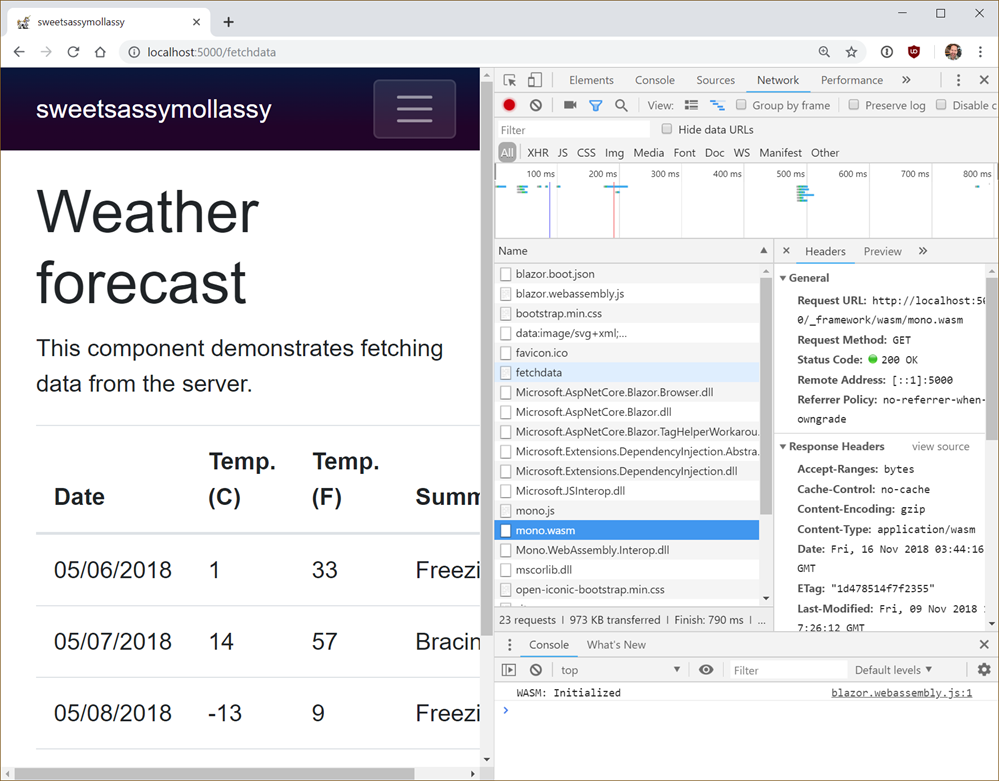
Then you could do this in the browser…look closely on the right side there.

You can see the Mono runtime compiled to WASM coming down. Note that Blazor IS NOT compiling your app into WASM. It’s sending Mono (compiled as WASM) down to the client, then sending your .NET Standard application DLLs unchanged down to run within with the context of a client side runtime. All using Open Web tools. All Open Source.

Blazor uses Mono to run .NET in the browser

So Blazor allows you to make SPA (Single Page Apps) much like the Angular/Vue/React, etc apps out there today, except you’re only writing C# and Razor(HTML).

Consider this basic example.

@page "/counter"


<h1>Counter</h1>
<p>Current count: @currentCount</p>
<button class="btn btn-primary" onclick="@IncrementCount">Click me</button>

@functions {
int currentCount = 0;
void IncrementCount() {
currentCount++;
}
}

You hit the button, it calls some C# that increments a variable. That variable is referenced higher up and automatically updated. This is trivial example. Check out the source for FlightFinder for a real Blazor application.

This is stupid, Scott. How do I debug this mess? I see you’re using Chrome but seriously, you’re compiling C# and running in the browser with Web Assembly (how prescient) but it’s an undebuggable black box of a mess, right?

I say nay nay!

C:\Users\scott\Desktop\sweetsassymollassy> $Env:ASPNETCORE_ENVIRONMENT = "Development"

C:\Users\scott\Desktop\sweetsassymollassy> dotnet run --configuration Debug
Hosting environment: Development
Content root path: C:\Users\scott\Desktop\sweetsassymollassy
Now listening on: http://localhost:5000
Now listening on: https://localhost:5001
Application started. Press Ctrl+C to shut down.

Then Win+R and run this command (after shutting down all the Chrome instances)

%programfiles(x86)%\Google\Chrome\Application\chrome.exe --remote-debugging-port=9222 http://localhost:5000

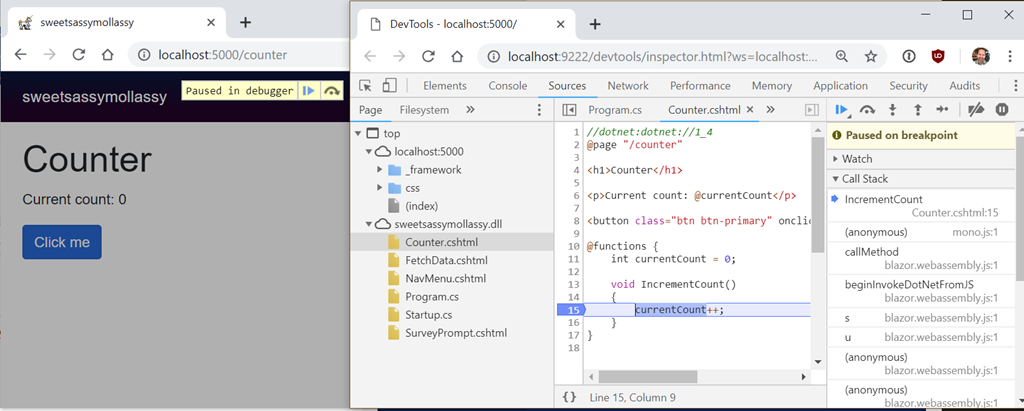
Now with your Blazor app running, hit Shift+ALT+D (or Shift+SILLYMACKEY+D) and behold.

Feel free to click and zoom in. We’re at a breakpoint in some C# within a Razor page…in Chrome DevTools.

HOLY CRAP IT IS DEBUGGING C# IN CHROME

What? How?

Blazor provides a debugging proxy that implements the Chrome DevTools Protocol and augments the protocol with .NET-specific information. When debugging keyboard shortcut is pressed, Blazor points the Chrome DevTools at the proxy. The proxy connects to the browser window you’re seeking to debug (hence the need to enable remote debugging).

It’s just getting started. It’s limited, but it’s awesome. Amazing work being done by lots of teams all coming together into a lovely new choice for the open source web.


Sponsor: Preview the latest JetBrains Rider with its Assembly Explorer, Git Submodules, SQL language injections, integrated performance profiler and more advanced Unity support.


© 2018 Scott Hanselman. All rights reserved.


from Scott Hanselman’s Blog http://feeds.hanselman.com/~/580549508/0/scotthanselman~Compiling-C-to-WASM-with-Mono-and-Blazor-then-Debugging-NET-Source-with-Remote-Debugging-in-Chrome-DevTools.aspx

Web Development and Advanced Techniques with Linux on Windows (WSL)

I’ve posted several times on the Windows Subsystem for Linux that allows you to run Linux on Windows 10 without a VM. Check out my YouTube on Editing code and files on Windows Subsystem for Linux on Windows 10. There’s just one rule. You can mess with Windows files from Linux but you can’t mess with Linux files from Windows. Otherwise, go crazy and enjoy. Here’s some of my previous posts you should check out:

WSL is pretty fantastic although its disk access is slower than native Linux, I find myself using it every day. If you want to setup Linux on your Windows 10 machine, just turn it on, then head over to the Windows Store and search for “Linux.”

You can turn on Linux on Windows 10 by typing “Windows Features” and checking “Windows Subsystem for Linux.” Then get a Linux from the Windows Store.

If you prefer to use PowerShell and do it in one line, just do this from an Admin PowerShell prompt:

Enable-WindowsOptionalFeature -Online -FeatureName Microsoft-Windows-Subsystem-Linux

Then go get any one (or more!) of these from the Store:

When you’re in a Windows shell like PowerShell or CMD you might want to run Linux and/or jump comfortably between shells. You can do that in a few ways. The best and recommended way is running “wsl.exe” as that will start up your default distro. You can also just type the name of the distro. So I can type “ubuntu” and get in there directly.

You can type “bash” but that’s not recommended if you’ve changed shells. If you’ve set up zsh or fish and type bash, it’s gonna still try to run bash.

Here I’ve typed wslconfig and you can see I’ve got both Ubuntu and Debian installed, with Ubuntu as the default when I type “wsl.”

C:\Users\scott>wslconfig /list

Windows Subsystem for Linux Distributions:
Ubuntu-18.04 (Default)
Debian

Now that I know how to run wsl from anywhere I can even pipe stuff in and out it Linux from outside. For example here I am in cmd.exe but I’m calling commands in Linux, that come out, then back in, etc. You can mix and match however you’d like!

C:\dev>type hello.sh

echo Hello
C:\dev>wsl cat /mnt/c/dev/hello.sh | wsl fromdos | wsl /bin/sh
Hello

This means even when I’m in CMD or PowerShell I can use Linux commands that are convenient or familiar to me. For example, here I’m piping a Windows Update log file into a the Linux command sha1sum command. Note the use of – to accept standard input – even though that input is from Windows!

C:\Users\scott\Desktop>type WindowsUpdate.log | wsl sha1sum -

3b48adce8f6c9cb816e8845d824dacc0440ca1b8 -

Sweet. There’s a number of nice advanced techniques if you want to make your WSL installations smarter AND automatically configured.  You can make a file in /etc/wsl.conf to affect your DNS, metadata and driving mounting.

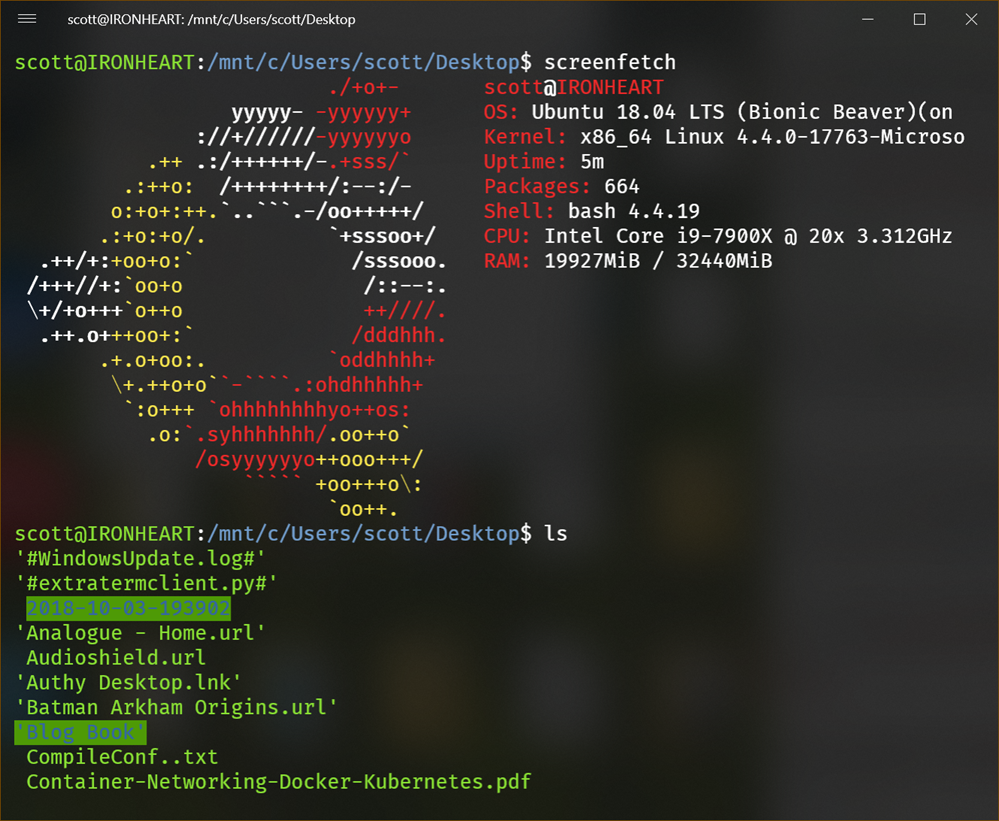
When you are in a WSL shell, your Windows drive (your main drive) is at /mnt/c. So here is my Windows desktop as viewed from WSL:

screenfetch in WSL

I most of my dev work in /mnt/d/github for example. That way I can use VS Code from Windows but run Node/Ruby/Go/Whatever from WSL.

I keep my files on my Windows drive, edit them in VS Code, but run things in WSL. Again, never use Windows utilities to reach into and/or edit files on the WSL/Linux subsystem. Also, always been conscious of your CR/LF situation, and be real conscious if you’re going to run git in both Windows and WSL.

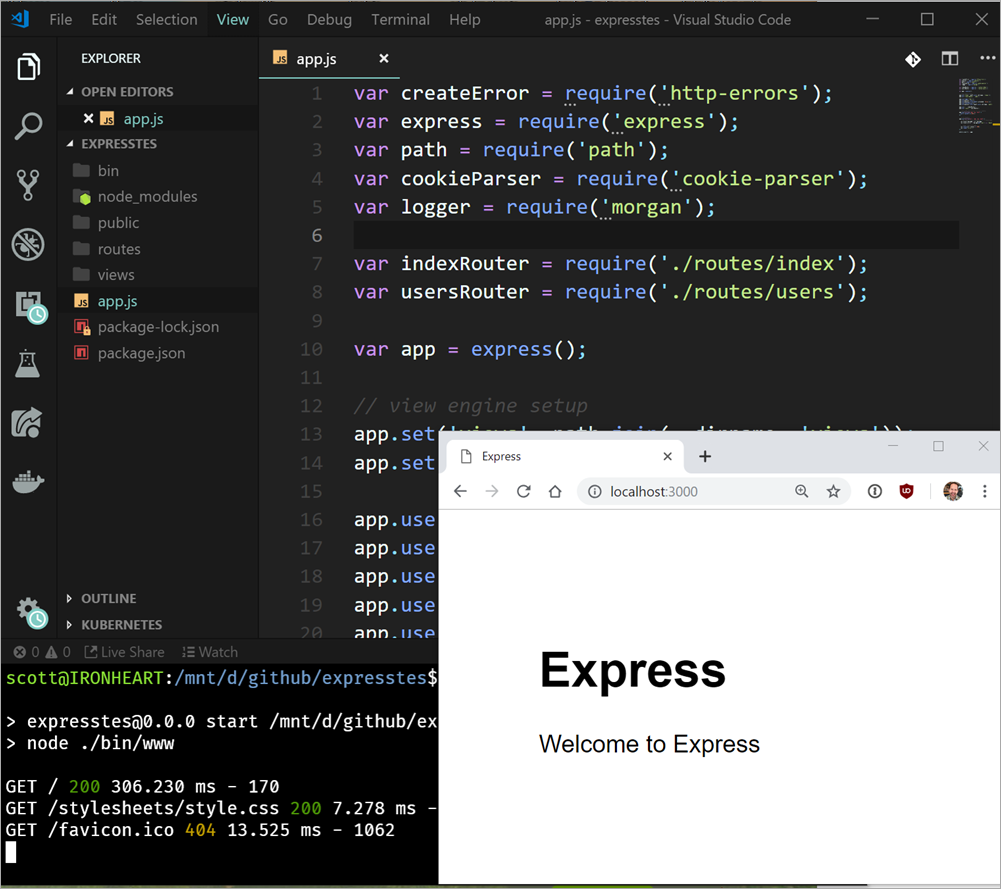
Here’s VS Code at the top, WSL/Ubuntu running Node at the bottom, and the local node app running in Edge on Windows on the lower right. We are sharing file systems and network port space:

Cross platform Web Dev

You can even share environment variables between WSL and Windows with a special environment variable called WSLENV. This is pretty advanced but super powerful. Read this carefully. You make a environment variable that is a list of names of other variables that you want translated between environments.

That means you can do something like this. I’m in WSL and I have an environment variable that points to a location on the filesystem. I need it to be correct in both worlds.

scott@IRONHEART:/mnt/d$ export MYLINUXPATH=/mnt/d/github/expresstest

scott@IRONHEART:/mnt/d$ export WSLENV=MYLINUXPATH/p
scott@IRONHEART:/mnt/d$ cmd.exe
D:\>echo %MYLINUXPATH%
D:\github\expresstest

Read that carefully. It’s awesome and it’s very configurable.

There’s lots of users of WSL and many have assembled great lists of resources like Awesome-WSL by Hayden.

It’s also worth pointing out that WSL is just now one console you can choose from. There’s PowerShell, CMD.exe, and a half dozen Linuxes. You can even make your own custom Linux Distro for your company if you like. And there’s a whole world of 3rd party Consoles that sit on top of/replace conhost.exe so you can have consoles with tabs, cool fonts, ones based on web tech, whatever! You can even choose WSL/bash as your default shell in Visual Studio Code if you’d like with Ctrl+~.

Hope this gets you started with Linux on Windows. What did I miss? Sound off in the comments.


Sponsor: Preview the latest JetBrains Rider with its Assembly Explorer, Git Submodules, SQL language injections, integrated performance profiler and more advanced Unity support.


© 2018 Scott Hanselman. All rights reserved.


from Scott Hanselman’s Blog http://feeds.hanselman.com/~/580088106/0/scotthanselman~Web-Development-and-Advanced-Techniques-with-Linux-on-Windows-WSL.aspx

CodeGym.cc – Gamified Online Course to Learn Java

In this article, we’ll review the benefits and perspectives of learning Java and probably the best way to master programming in it – through gamified education.

Why Java is a smart choice for starting a career in programming? Skeptics say, that this language is too old, and will become rudimental in no longer than 20 years. It’s true, that age matters in a fast-changing programming ecosystem. But this is not the case for Java.

Let’s think about key aspects for anyone who wants to build a career in programming from “ground zero”. It is important to choose a language which is easy to learn, which is widely used, especially in top-level enterprises, ensuring a wide choice of vacancies and a good scope of work. Of course, high salaries and prospects for further development are also important. Does Java meet these requirements? You bet.

CodeGym 1

Java is among all-time leaders according to major rankings of programming languages. According to the TIOBE Programming Community index, Java is a #1 language based on data from 25+ search engines. It has been on top of the list since 2002, rarely losing to C language. What’s more, a couple of years ago Oracle estimated that Java runs on over 3 billion devices worldwide, thanks to its core advantage: ”write once, run everywhere”.

Java is the main programming language for Android apps. It is also used in writing back-end systems and desktop applications. It is popular in numerous fields, like tech, government, finance, education, healthcare, e-commerce. Approximately 90% of Fortune 500 enterprises use Java, empathizing its security, flexibility, and simplicity for beginners. So there is no surprise that according to Indeed.com ranking, Java developer’s average salary exceeds $ 100 000 per year.

Apart from this, Java has a great community. There are about 10 millions of Java developers worldwide. And if you ask them, what do they like in Java apart from the above-listed benefits, they’d probably say a wide range of excellent libraries that help in solving most of the problems during software development. Even coders from other “programming camps” admit this undeniable advantage.

Okay, maybe it’s too early to talk about libraries, but it’s definitely a proper moment to switch from Java benefits to the available options for learning this language.

Today it’s possible to learn Java from anywhere: there’s a number of online educational platforms, which can bring you up to speed on Java programming basics. Online education includes a major element of successful learning – practice. It’s impossible to get ready for Java developer position by simply reading a few books and watching video tutorials. To become a programmer, you need to code. To stay motivated in self-education, you need an interaction. A common trend in today’s online education is gamification. And to be honest, it is the best solution for learning how to code. Let’s take CodeGym.cc as an example and delve into gamified education.

Learning Java programming can be exciting

CodeGym.cc is an online gamified platform, majorly based on practice. The goal is to upgrade a character by learning Java from scratch, solving tasks and opening new levels, until a student passes the final 40th.

Education Space Quest

It’s like any game, with its own universe and unique story. Here’s where a player starts at CodeGym.cc. It’s the year 3018, with all futuristic attributes you can think of, like space travel, extraterrestrial life, and robots. The plot begins with a crash of spaceship Galactic Rush on the unknown planet, inhabited by wild robots. The crew needs to pull the spaceship out of the stone heap, but it is impossible without the help. They find the most talented young robot Amigo and teach him how to code so that later he will be able to rewrite his firmware for a bricklayer and then do the same with other robots. The “army” of bricklayers will take the heap to pieces and pull out the spaceship.

CodeGym 2

The course is divided into four quests, each has 10 levels. Every level contains 10-12 lectures with theory, explained in an interactive, lively tone of voice and a set of tasks. The goal is to help Amigo pass the 40th level. By that time, a student (or rather say, a player) will be quite ready for Junior Java developer position. The storyline, milestones, gaming, and on-time motivation are supposed to help a user to reach the end.

Coding from the First Lesson

In CodeGym the emphasis is put on practice: there are 1200+ tasks, which convert into more than 500 hours of programming. This is exactly what a student needs to apply for the first job in programming. Learning Java is impossible without practicing at once. Therefore, almost every lecture ends with the tasks of different complexity.

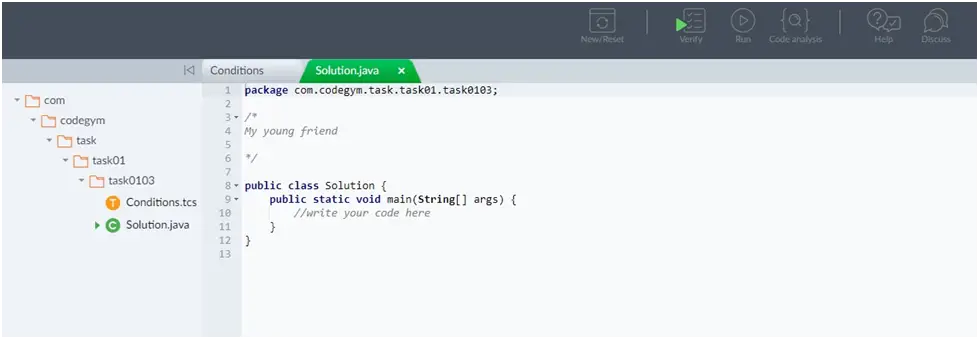
CodeGym 3

Each task has an instant verification option, that shows a user’s progress step by step. That’s why it is possible to leave the correct lines of code and focus on fixing mistakes.

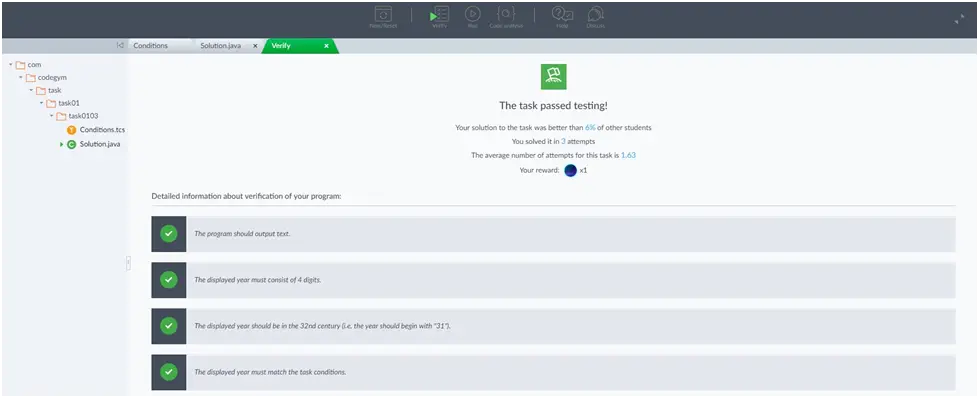
CodeGym 4

After the task is fully completed, a student can see a detailed review of it: statistics on the average number of attempts taken in, comparison with other students. Given that almost every task starting from level 3 can have multiple solutions, a student can return and complete them again. To improve code, open the “Code analysis” tab to see the tips from a virtual mentor, which will help to improve a coding style.

A Large Java Community

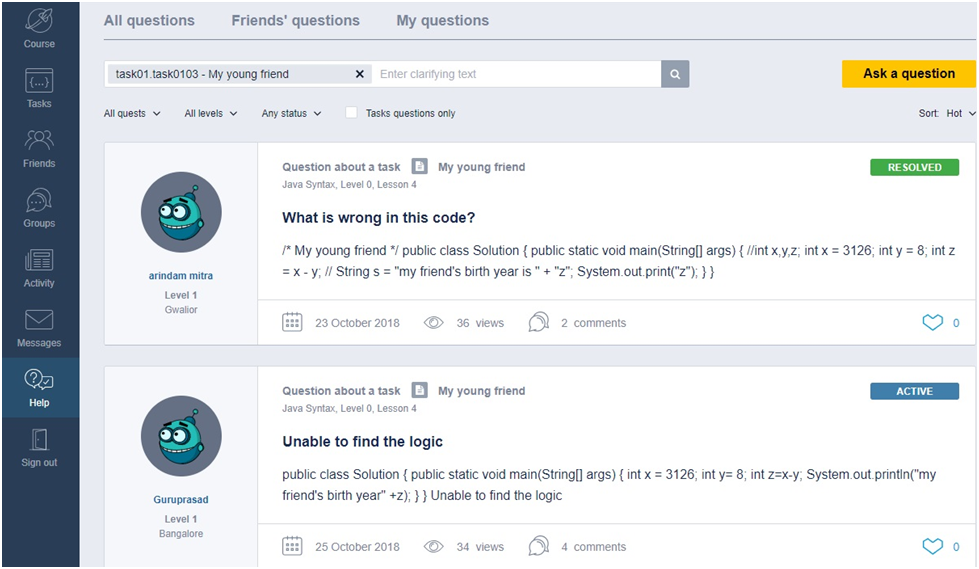
CodeGym.cc course includes approximately 80% of practice and 20% of theory. Sometimes the tasks outrun theory so that a student needs to do extra research or take more time to solve the task. But if it’s too hard to resolve, one can ask for a help from CodeGym.cc community. There’s a great chance that someone will give a tip, which will lead to the right solution.

CodeGym 5

CodeGym.cc is a course with an integral approach to education. The story and challenges lead students further. 1200+ tasks ensure hundreds of hours of coding. Fast-growing community helps to improve programming skills by sharing the experience.

So, if you’re into learning Java, you might want to do it in an uncommon, but efficient way.

The post CodeGym.cc – Gamified Online Course to Learn Java appeared first on The Crazy Programmer.

from The Crazy Programmer https://www.thecrazyprogrammer.com/2018/11/learn-java-online.html

Terminus and FluentTerminal are the start of a world of 3rd party OSS console replacements for Windows

Folks have been trying to fix supercharge the console/command line on Windows since Day One. There’s a ton of open source projects over the year that try to take over or improve on “conhost.exe” (the thing that handles consoles like Bash/PowerShell/cmd on Windows). Most of these 3rd party consoles have weird or subtle issues. For example, I like Hyper as a terminal but it doesn’t support Ctrl-C at the command line. I use that hotkey often enough that this small bug means I just won’t use that console at all.

Per the CommandLine blog:

One of those weaknesses is that Windows tries to be “helpful” but gets in the way of alternative and 3rd party Console developers, service developers, etc. When building a Console or service, developers need to be able to access/supply the communication pipes through which their Terminal/service communicates with command-line applications. In the *NIX world, this isn’t a problem because *NIX provides a “Pseudo Terminal” (PTY) infrastructure which makes it easy to build the communication plumbing for a Console or service, but Windows does not…until now!

Looks like the Windows Console team is working on making 3rd party consoles better by creating this new PTY mechanism:

We’ve heard from many, many developers, who’ve frequently requested a PTY-like mechanism in Windows – especially those who created and/or work on ConEmu/Cmder, Console2/ConsoleZ, Hyper, VSCode, Visual Studio, WSL, Docker, and OpenSSH.

Very cool! Until it’s ready I’m going to continue to try out new consoles. A lot of people will tell you to use the cmder package that includes ConEmu. There’s a whole world of 3rd party consoles to explore. Even more fun are the choices of color schemes and fonts to explore.

For a while I was really excited about Hyper. Hyper is – wait for it – an electron app that uses HTML/CSS for the rendering of the console. This is a pretty heavyweight solution to the rendering that means you’re looking at 200+ megs of memory for a console rather than 5 megs or so for something native. However, it is a clever way to just punt and let a browser renderer handle all the complex font management. For web-folks it’s also totally extensible and skinnable.

As much as I like Hyper and its look, the inability to support hitting “Ctrl-C” at the command line is just too annoying. It appears it’s a very well-understood issue that will ultimately be solved by the ConPTY work as the underlying issue is a deficiency in the node-pty library. It’s also a long-running issue in the VS Code console support. You can watch the good work that’s starting in this node-pty PR that will fix a lot of issues for node-based consoles.

Until this all fixes itself, I’m personally excited (and using) these two terminals for Windows that you may not have heard of.

Terminus

Terminus is open source over at https://github.com/Eugeny/terminus and works on any OS. It’s immediately gorgeous, and while it’s in alpha, it’s very polished. Be sure to explore the settings and adjust things like Blur/Fluent, Themes, opacity, and fonts. I’m using FiraCode Retina with Ligatures for my console and it’s lovely. You’ll have to turn ligature support on explicitly under Settings | Appearance.

Terminus is a lovely console replacement

Terminus also has some nice plugins. I’ve added Altair, Clickable-Links, and Shell-Selector to my loadout. The shell selector makes it easy on Windows 10 to have PowerShell, Cmd, and Ubuntu/Bash open all at the same time in multiple tabs.

I did do a little editing of the default config file to set up Ctrl-T for new tab and Ctrl-W for close-tab for my personal taste.

FluentTerminal

This is a Terminal Emulator based on UWP. Its memory usage on my machine is about 1/3 of Terminus and under 100 megs. As a Windows 10 UWP app it looks and feels very native. It supports ALT-ENTER Fullscreen, and tabs for as many consoles as you’d like. You can right-click and color specific tabs which was a nice surprise and turned out to be useful for on-the-fly categorization.

image

FluentTerminal has a nice themes setup and includes a half-dozen to start, plus supports imports.

It’s not yet in the Windows Store (perhaps because it’s in active development) but you can easily download a release and install it with a PowerShell install.ps1 script.

I have found the default Keybindings very intuitive with the usual Ctrl-T and Ctrl-W tab managers already set up, as well as Shift-Ctrl-T for opening a new tab for a specific shell profile (cmd, powershell, wsl, etc).

Both of these are great new entries in the 3rd party terminal space and I’d encourage you to try them both out and perhaps get involved on their respective GitHubs! It’s a great time to be doing console work on Windows 10!


Sponsor: Check out the latest JetBrains Rider with built-in spell checking, enhanced debugger, Docker support, full C# 7.3 support, publishing to IIS and more advanced Unity support.


© 2018 Scott Hanselman. All rights reserved.


from Scott Hanselman’s Blog http://feeds.hanselman.com/~/579598558/0/scotthanselman~Terminus-and-FluentTerminal-are-the-start-of-a-world-of-rd-party-OSS-console-replacements-for-Windows.aspx

Design a site like this with WordPress.com
Get started