Working with Apps in Django

In this tutorial, we’ll learn about:

  1. What is app in django project and why to use it?
  2. How to create app in django project?

So let’s start with very first question.

What is app in django project and why to use it?

We’ve seen that how to create a project in django. Actually each django project consist of some applications where each application have its task to perform. The main advantage to use apps in django is code reusability. If you have designed an app in a project and you need the same functionality to another project that our app is performing. Then you can simply copy and paste our app into another project. Let’s say you have designed a contact form in one website and you want to use the same contact form in another website then you can do it very easily in django.

How to create an app in django project?

In order to create an application in django project, first open command prompt or terminal and navigate to the project folder and type the command given below.

python  manage.py startapp myapp

or if you’re linux or mac user and working with python 3 then type:

python3 manage.py startapp myapp

After entering this command, a folder will be created in your project folder having some files.

Files will be:

  1. py: This file is just to make sure that this file should be treated as package.
  2. admin.py: This file will help us to make the application modifiable while working with the admin interface.
  3. models.py: The models of the application will be stored there. Model means the structure of your app and how it is going to interact with the databases. We’ll discuss more about models in upcoming articles.
  4. tests.py: Unit tests of the app will be stored here.
  5. views.py: views of our application will be stored here.
  6. apps.py: It will contain the name of app to be included to settings.py file and many other things. We’ll see it while making any simple app (for example – blog app).

After creating app we’ve to tell our django project that we’ve made and added an application in our project.

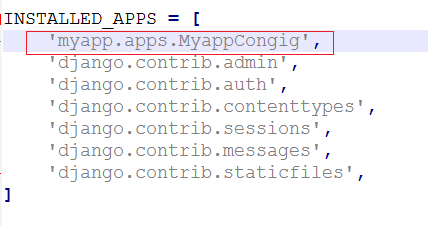
Open your settings.py file and add a path of our newly created app. And edit as:

Working with Apps in Django

If you’re thinking that where that MyappConfig came from? It’s a reference to myapps’s configuration class. You can see it in apps.py file in our myapp folder.

That’s all we have to do to add an app in our django project. But still there is no use of app without its model. So we’ll learn about models in upcoming articles.

If you’ve any problem related to this article please let us know in comment box.

The post Working with Apps in Django appeared first on The Crazy Programmer.

from The Crazy Programmer https://www.thecrazyprogrammer.com/2018/12/working-with-apps-in-django.html

Using Visual Studio Code to program Circuit Python with an AdaFruit NeoTrellis M4

My son and I were working on an Adafruit NeoTrellis M4 Mainboard over the holidays. This amazing little device puts a NeoPixel + an Audio board + a USB port along with a 120 MHz Cortex M4 Core and a mic amplifier and you can program it with CircuitPython. CircuitPython is open source and on Github at https://github.com/adafruit/circuitpython. “CircuitPython is an education friendly open source derivative of MicroPython.” It works with a bunch of boards including this NeoTrellis and it’s just lovely for teaching and learning.

This item is just the mainboard! You’ll almost certainly want two Silicone Elastomer 4×4 Pads and an enclosure to go along.

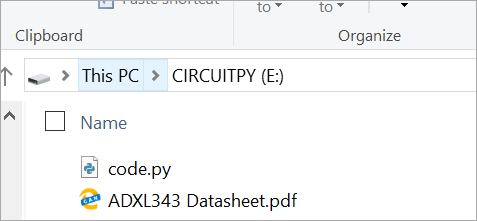
Circuit PythonAs with a lot of these small boards, when you plug a NeoTrellis into a your machine via USB you’ll get new disk drive that pops up. All you have to do to “deploy” your code is copy it to your drive. Even better, why not just edit the code place?

There’s a great Python editor called Mu that works well with Circuit Python. However, my son and I are more familiar with Visual Studio Code so we wanted to see how it worked with Circuit Python.

We installed the Python extension for VS Code as well as the Arduino extension for VS Code and the Arduino IDE directly from the Windows Store.

Fire up VS Code and File | Open Folder and open the Disk Drive of the NeoTrellis and open (or create) a code.py file. Then from the Command Palette (Ctrl-Shift-P) in VS Code select Arduino > Initialize. If you get an error you may need to set up the path to your Arduino IDE. If you installed it from the Windows Store like we did you may find it in a weird path. We set the arduino.path like this:

"arduino.path": "C:\\Program Files\\WindowsApps\\ArduinoLLC.ArduinoIDE_1.8.19.0_x86__mdqgnx93n4wtt"

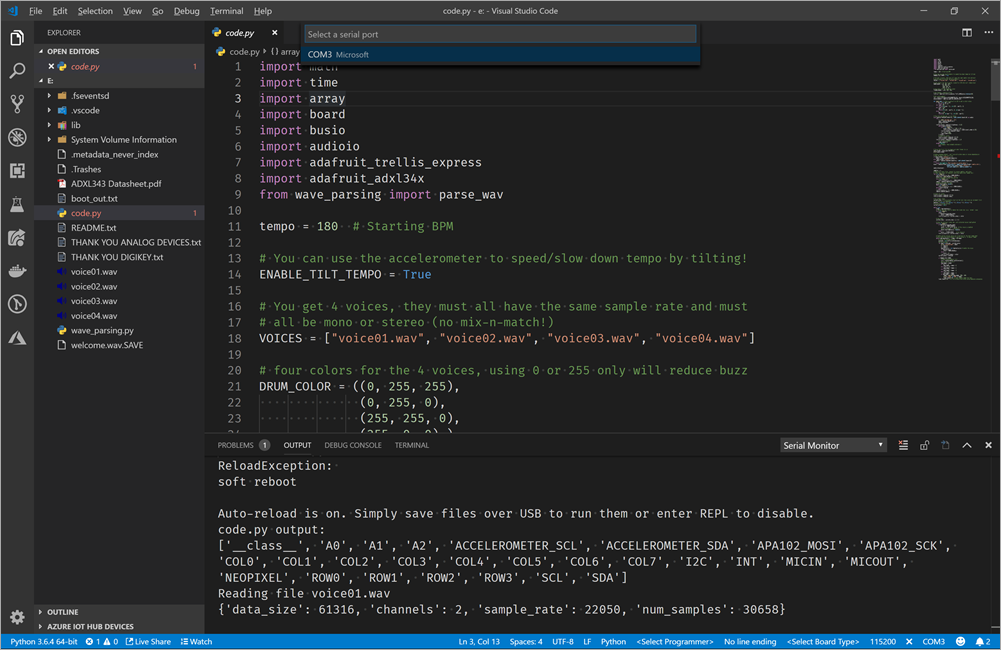
The NeoTrellis M4 also shows up as a COM port so you can look at its Serial Output for debugging purposes as if it were an Arduino (because it is underneath). You then Arduino > Select a COM Port from the Command Palette and it will create a file called .vscode/arduino.json in your folder that will look like this:

{

"port": "COM3"
}

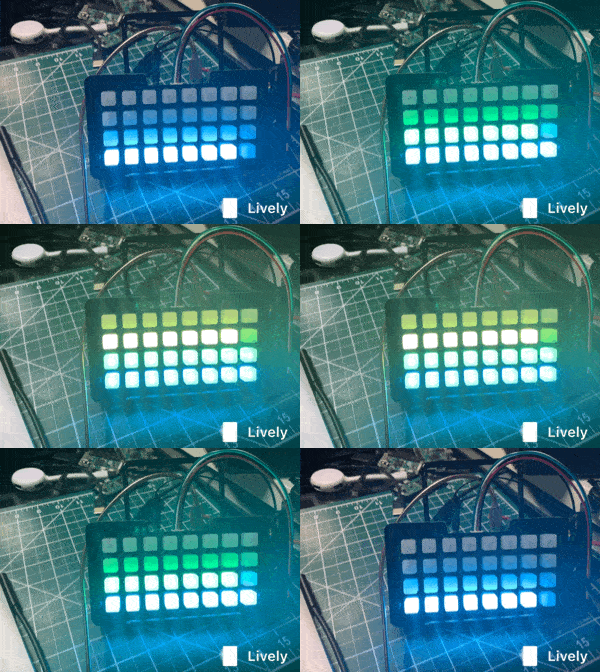
Trellis M4 is awesomeNow, within Visual Studio Code select Arduino > Open Serial Monitor and all of your print(“”) methods will output to that bottom pane.

Of course, we could putty into the COM Port but since I’m using this as a learning tool with my 11 year old, I find that a single window that shows both the console and the code help them focus, rather than managing multiple windows.

At this point we have a nice Developer Inner Loop going. That inner loop for us (the developers) is that we can write some code, hit save (Ctrl-S) and get immediate feedback. The application restarts when it detects the code.py file has changed and any debug (print) statements appear in the console immediately.

Visual Studio Code doing some Circuit Python

We are really enjoying this Adafruit NeoTrellis M4 Express kit


Sponsor: Me! Hey friends, I’ve got a podcast I’m very proud of where I interview amazing people every week. Check it out at https://www.hanselminutes.com and please not only subscribe in your favorite podcasting app, but also tell your friends! Tweet about it and review it on iTunes/Google Play. Thanks!


© 2018 Scott Hanselman. All rights reserved.


from Scott Hanselman’s Blog http://feeds.hanselman.com/~/589512692/0/scotthanselman~Using-Visual-Studio-Code-to-program-Circuit-Python-with-an-AdaFruit-NeoTrellis-M.aspx

Tips To Spot A Phishing Or Spoofing Email

Even if you have security software, phishing emails will leave exposed to ransom wares. The phishing emails have become too common nowadays. This has continued to cost businesses and individuals a lot of money. Cyber criminals use phishing emails to get access to private and confidential information such as your passwords, credit cards, and other private information. Other than phishing emails, hackers use phone calls, social media to steal your private information. Do not fall victim to these online scams. You need to know what phishing emails look like to stay safe. Companies should be able to block these spoofing emails before they reach their customers. The following phishing awareness tips will help you identify these emails:

Tips To Spot A Phishing Or Spoofing Email

1. Never Trust The Display Name

Most hackers use a common strategy which is to trick the display name of the email. These emails may look legitimate, but it if looks suspicious just flag it off. Do not trust the display name.

2. Poor Grammar and Spelling Mistakes

Most phishing emails are full of grammatical errors and spelling mistakes. Legitimate companies would never send out emails or information with grammar and spelling mistakes. If you receive an email with these mistakes, it should raise your suspicion. If you get suspicious about it, do not click it.

3. Seeking Personal Information

Regardless of how genuine an email may look, never click on an email that requests you for your personal information. Legitimate accounts will not bother you asking for your account number when they already have it. They will request you for passwords or credit card numbers. If you get an email requesting for such kind of information, know that it phishing. Never share your private information with anybody most especially online.

4. The Offer Sounds Too Good

If you receive these emails with offers that are too good to be true. Please avoid them.  These emails have unrealistic promises that turn out to be nothing but just a trick. Another way you can point out a scam is if they address you as ‘esteemed customers’, “valued customer”, “sir/madam” or any other phrase. Legitimate emails from genuine companies will personalize the message. They will address you by your name.

5. Threatening and Urgent Messages

Hackers will send messages that claim that your account has been hacked and that you should urgently follow a link to restore it. This asks you for personal information. Legitimate companies do not ask you for personal information over the internet even if your account was closed. Cyber criminals use the tactic of urgency to instill fear in you and so that you can act promptly.

6. Check the Signature or Contacts

A legitimate company will give you a way to contact them back in their emails. Additionally, messages sent by genuine companies do have signatures. One of the ways you can identify a phishing email is if it lacks these two important aspects.

7. Always Double Check

Do not believe everything you see. No matter how much the email is convincing, ensure that you double check. You can contact your service providers where necessary just to make sure it is from them. If you are suspicious about the email, again do not open it.

8. Never Click The Attachments

Hackers use malicious attachments with malware and viruses. If you click them they damage your files in the computer, retrieve your passwords and monitor you without your knowledge. Do not click on these attachments that you do not their origin.

You need to protect yourself from cyber criminals by being vigilant. Read more phishing awareness tips to help you stay safe.

The post Tips To Spot A Phishing Or Spoofing Email appeared first on The Crazy Programmer.

from The Crazy Programmer https://www.thecrazyprogrammer.com/2018/12/tips-to-spot-a-phishing-or-spoofing-email.html

Data Visualization in R

R programming was developed in 1993 for making graphs and producing statistical results. There are many libraries in R language that can be used for making graphs and producing statistical data.

There are many steps that have to be taken into consideration for doing data analysis through this language. These steps are:

  • Programming
  • Transforming
  • Discovering
  • Modeling
  • Communicating

R programming is being used in many industries like academics, healthcare, government, insurance, retail, media, manufacturing, etc.

This data analysis can be done through programming in R language which comes with a number of packages having many inbuilt functions and this is the reason that developers do not have to program much. They just need to use those functions and carry out the analysis.

Why R Programming?

R Programming can be used to create statistics and graphs. The language has become very popular and people who want to make their career in this language can undergo R certification online through various institute who provide in-depth knowledge of R.

R certification when seen today can prove to be very useful for students and they can plan a good career after the certification which certainly gives an individual an upper edge over others.

Data Visualization in R

Many types of data visualizations can be created through the language and these are:

  • Histogram
  • Bar / Line Chart
  • Box plot
  • Scatter plot
  • Heat Map
  • Mosaic Map
  • Map Visualization
  • 3D Graphs
  • Correlogram

These will be discussed one by one.

Histogram

A histogram can be created by using histdata package that has many small data sets to create the histogram. A histogram can be used to break data into bins and show their frequency. Here is the code in which histogram is created. Here is the code of creating a simple histogram.

hist(Temperature,
main="Maximum daily temperature ",
xlab="Temperature in degrees Fahrenheit",
xlim=c(50,100),
col="darkmagenta",
freq=FALSE
)
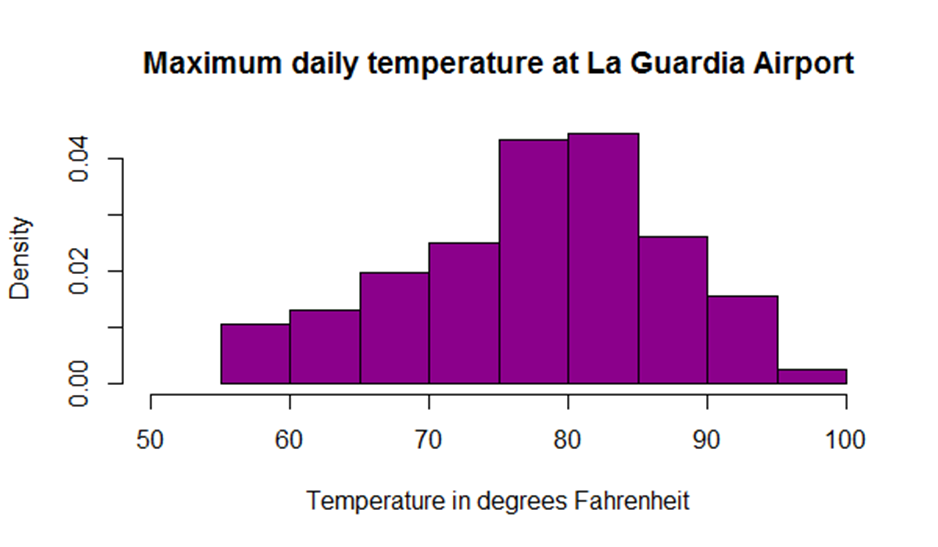
Histogram with R

Image Source

While creating a histogram a developer can see that number of colors specified is more than the number of breaks. The colors are repeated if the number of colors is more.

Line Chart

A line chart shows an increase in the data for a given time period. Line charts are created to compare the changes between two organizations or between weather of two places or other comparisons. Line charts are also created to analyze the trends over a particular period.

x <- c(1:5); y <- x
par(pch=22, col="red")
par(mfrow=c(2,4))
opts = c("p","l","o","b","c","s","S","h")
for(i in 1:length(opts)){
  heading = paste("type=",opts[i])
  plot(x, y, type="n", main=heading)
  lines(x, y, type=opts[i])
}
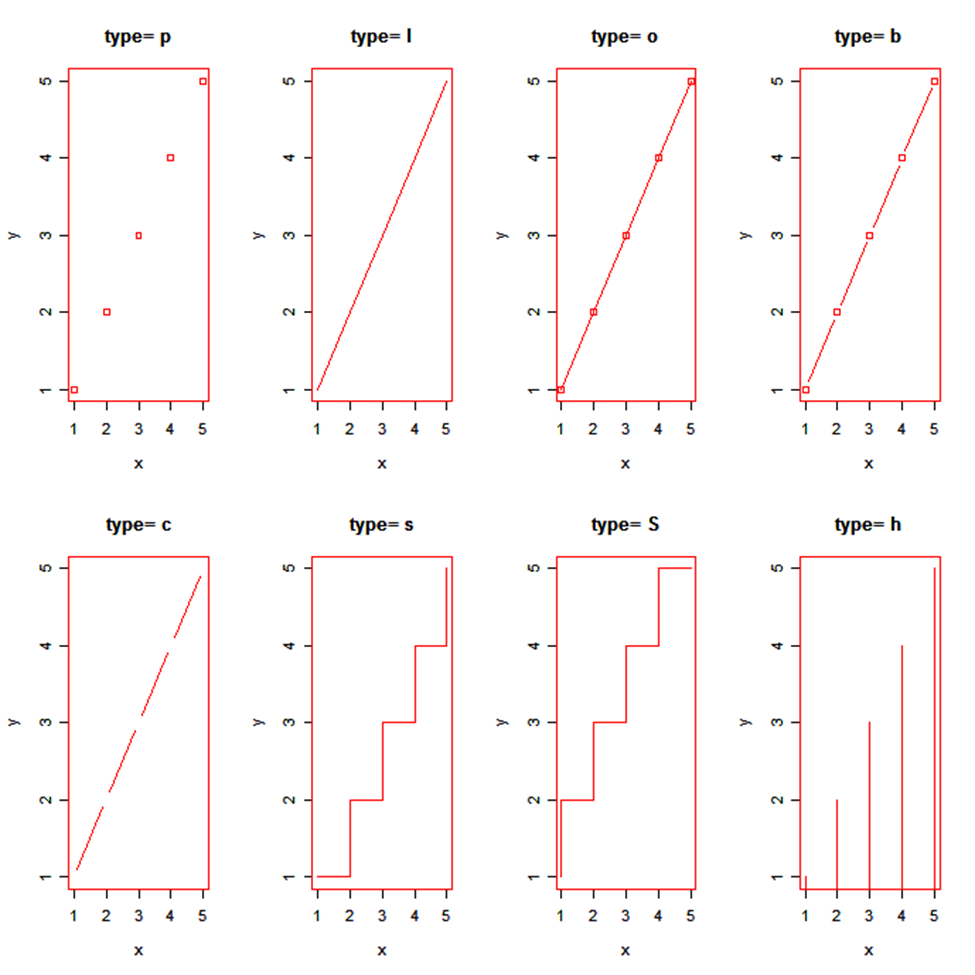
Line Chart in R

Image Source

Bar Chart

Bar chart is also created for comparing profits or weather report or other comparisons. The chart is displayed in the form of bars. Here is the code of creating a vertical bar chart.

counts <- table(mtbikes$gear)
barplot(counts, main="Bike Distribution",
   xlab="Number of Gears")
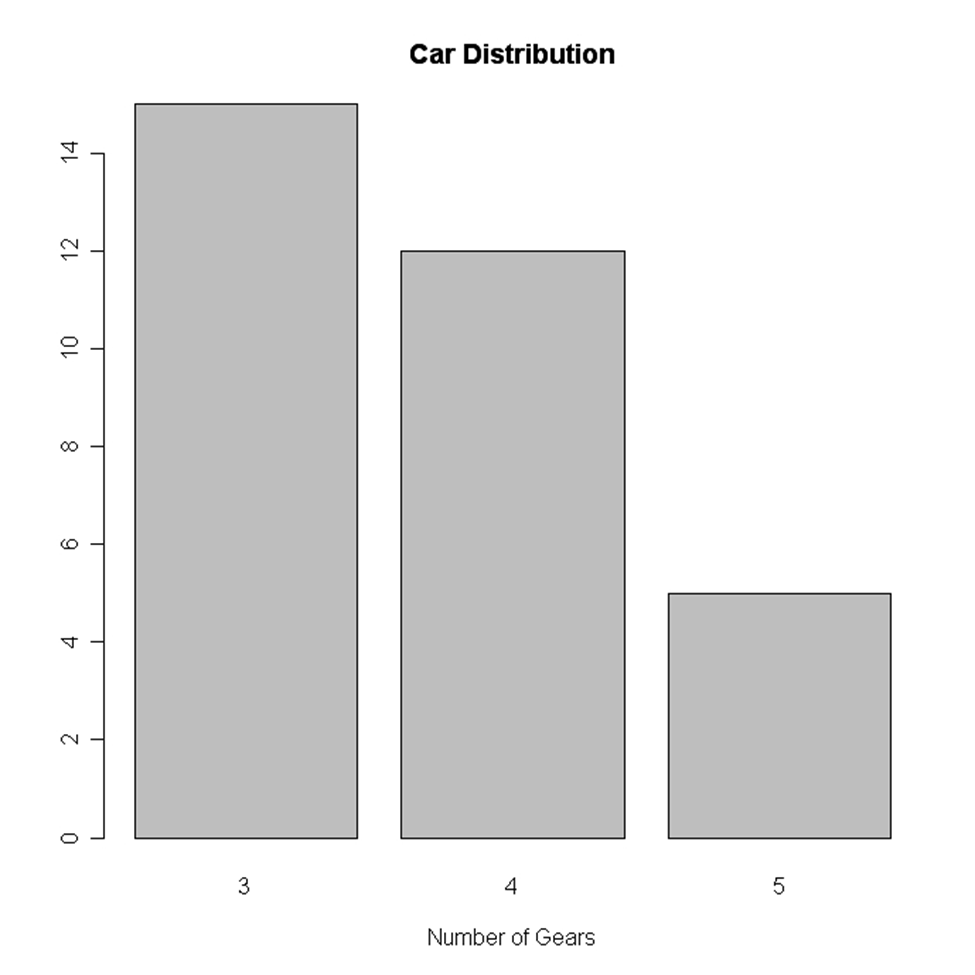
Bar Chart in R

Image Source

Here is an example of creating a horizontal bar chart.

counts <- table(mtbikes$gear)
barplot(counts, main="Bike Distribution", horiz=TRUE,
  names.arg=c("3 Gears", "4 Gears", "5 Gears"))

Box Plot

It is created either for a single variable or a group of variables. The syntax of creating a box plot is as follows

boxplot(x,data=)

Here x is the formula and data= is the frame which provides the data. Here is an example of creating a box plot.

boxplot(mpg~cyl,data=mtbikes, Bike Milage Data",
   xlab="Number of Cylinders", ylab="Miles Per Gallon")
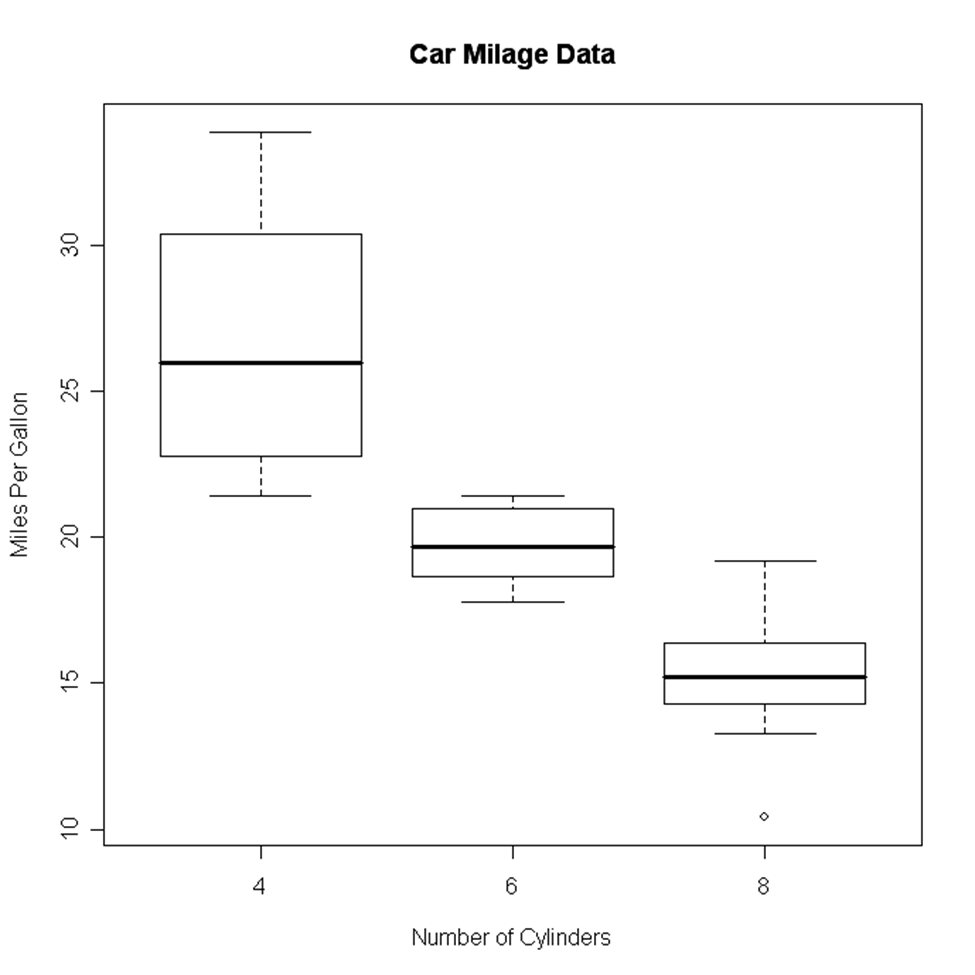
Box Plot in R

Image Source

Scatter Plot

Scatter plot can be created in many ways. The basic formula for creating the scatter plot is

plot(x, y)

Here is an example of creating a scatter plot.

attach(mtbikes)
plot(wt, mpg, main="Scatterplot Example",
   xlab="Bike Weight ", ylab="Miles Per Gallon ", pch=19)

Heat Map

A heat map is displayed in the form of a table in which colors are displayed in place of numbers. All the columns can have either same or different colors. The dark color denotes highs while the light colors denote lows. Here is an example of creating a heat map.

> heatmap(as.matrix(mtcars))

Mosaic Map

Mosaic Map can be created by using VCD library which has an ample amount of functions to create the map. The syntax for creating a mosaic map is as follows:

mosaic(x, condvar=, data=)

Here x is the formula and codevar is an optional variable in which conditions can be defined. The example below shows the making of a mosaic map

library(vcd)
mosaic(HairEyeColor, shade=TRUE, legend=TRUE)

3D Graphs

R programming can be used to create 3D graphs which are very impressive. The R commander package is used to create these graphs. In order to create the 3D graph R commander package has to be installed and then 3D plot option should be used in the graph.

Here is the code for creating the graph:

>data(iris, package="datasets")
>scatter3d(Petal.Width~Petal.Length+Sepal.Length|Species, data=iris, fit="linear"
>residuals=TRUE, parallel=FALSE, bg="black", axis.scales=TRUE, grid=TRUE, ellipsoid=FALSE)

Lattice package can also be used to create 3D graphs.

Here is an example

>attach(iris)
>cloud(Sepal.Length~Sepal.Width*Petal.Length|Species, main="3D Scatterplot by Species")
>xyplot(Sepal.Width ~ Sepal.Length, iris, groups = iris$Species, pch= 20)

Correlogram

Correlogram helps the users to view the data in the form of matrices. The syntax for creating a correlogram is given below.

corrgram(x, order = , panel=, lower.panel=, upper.panel=, text.panel=, diag.panel=)

Here

Order=TRUE will set the variables in proper order in relation to the correlation matrix.

Panel= refers to diagonal panels in which developers can use lower= and upper=. These options can be chosen below and above the diagonal. Text.panel and diag.panel are the references to main diagonal.

Here is an example of creating a correlogram.

library(corrgram)
corrgram(mtbikes, order=TRUE, lower.panel=panel.shade,
  upper.panel=panel.pie, text.panel=panel.txt,
  main="Bike Milage Data in PC2/PC1 Order")

Map Visualization

This is the latest thing that has been put into the R programming. R can provide the map visualization through JavaScript libraries. The leaflet is open source through which JavaScript libraries can be used for creating interactive maps. In order to use the library, it should be installed.

library(magrittr)
library(leaflet)
m <- leaflet() %>%
addTiles() %>%
addMarkers(lng=77.2310, lat=28.6560, popup="The delicious food of India")
m

Hexbin

Hexbin is a package, which helps to create multiple points This package can be used to create a bivariate histogram. Here is the code for the same.

>library(hexbin)
>a=hexbin(diamonds$price,diamonds$carat,xbins=40)
>library(RColorBrewer)
>plot(a)

Final Verdict

It can be said that various kinds of graphs can be made from R language by writing few lines of code and embedding packages and functions, which have already been coded.

These charts can be used on the web as well as desktop applications and can help you for data visualization in R in a specific way.

The post Data Visualization in R appeared first on The Crazy Programmer.

from The Crazy Programmer https://www.thecrazyprogrammer.com/2018/12/data-visualization-in-r.html

6 Ways to Perfect the UI of Your Mobile App

One of the biggest headaches mobile app programmers face is how to make their app stand out from the rest. It’s a valid concern since the average app will be coming up against tens or hundreds of applications already in the market that do almost the same thing.

Whereas making sure the app has the functionality users expect is vital, it’s the softer considerations such as the user interface (UI) that often determine what app a user will prefer.

The UI gives the user a perception of how effective the app is. Here are some tips on designing a quality UI for your mobile app.

6 Ways to Perfect the UI of Your Mobile App

1. Think About the UI Right from Initial App Design

You are more likely to build a quality UI if you incorporate it in app design from the start. Create sketches that visualize navigational flow from the end user’s perspective. Pen and paper sketches will suffice at this early stage.

You could have several UI sketches and narrow down to a final two that seem the most feasible. Once you’ve built the nuts and bolts of the app, you can have two versions of the app as prototypes based on the final two sketches. Test out the two with a limited audience to see which one is most popular with users.

2. Maintain Consistency

Your mobile app will have multiple screens such as the home screen, settings screen and user registration screen. Once you’ve settled on a specific design and style for your UI, you must apply it consistently to every screen within the app.

If design, typology and colors change whenever the user switches to a different screen, this will only cause confusion. Keeping structure and aesthetics the same creates smooth transitions during navigation.

3. Choice of Colors

Color is one of the most import aspects of the UI. When developing a color theme for your app, choose hues that do not exert visual strain on users. For example, grey text on a yellow background would be difficult to read.

The number of colors matters too. Best practice is to keep it at a maximum of three. Finally, go for colors that evoke the right emotions and encourage users to follow through on your call to action (CTA).

4. Get Rid of Superfluous Functionality

Mobile app use usually follows the Paretto Principle — 80 percent of users will make use of just 20 percent of an application’s features. The more the features, the greater the risk of having a cluttered chaotic UI. So as you design the app, rank the features by order of priority and see which of the low priority features are expendable.

If it’s difficult to do this prioritization during the design phase, you may have to do it either through prototype tests or after the app goes live. Simply monitoring data usage and the number of times users call on each feature can give you a fairly accurate picture of what functions you can let go of.

5. Conventional Smartphone User Habits

Most smartphone users operate their devices with just one hand. Your mobile app interface should factor conventional gestures into the design. Users are already accustomed to sliding or touching their screens in a certain way.

There’s heavy dependence on the thumb in particular. Ergo, the placement of buttons, tabs, links and form fields should be within easy reach of the user’s thumb.

6. Good Error Handling

Despite the amount of time, thought, resource and effort you devote to building an app, there’s no guarantee that it will be error free. You have to develop a process for error handling that doesn’t leave the user bewildered.

When an error occurs, keep messages brief, simple and specific. You could also notify the user on what they need to do to resolve the error (for example, restart the app or download a newer version). Making sure the back end works as it should is something you must pay attention to as well. For instance, you can benefit from AWS monitoring for your cloud servers.

Don’t leave UI considerations up to the last minute. It should be an integral part of your software development process from the get-go. The UI can make the difference between the success and failure of your app.

The post 6 Ways to Perfect the UI of Your Mobile App appeared first on The Crazy Programmer.

from The Crazy Programmer https://www.thecrazyprogrammer.com/2018/12/6-ways-to-perfect-the-ui-of-your-mobile-app.html

The Fun of Finishing – Exploring old games with Xbox Backwards Compatibility

Star Wars: KOTORI’m on vacation for the holidays and I’m finally getting some time to play video games. I’ve got an Xbox One X that is my primary machine, and I also have a Nintendo Switch that is a constant source of joy. I recently also picked up a very used original PS4 just to play Spider-man but expanded to a few other games as well.

One of the reasons I end up using my Xbox more than any of my other consoles is its support for Backwards Compatibility. Backwards Compat is so extraordinary that I did an entire episode of my podcast on the topic with one of the creators.

The general idea is that an Xbox should be able to play Xbox games. Let’s take that even further – Today’s Xbox should be able to play today’s Xbox games AND yesterday’s…all the way back to the beginning. One more step further, shall well? Today’s Xbox should be able to play all Xbox games from every console generation and they’ll look better than you imagined them!

The Xbox One X can take 720p games and upscale them to 4k, use higher quality textures, and some games like Final Fantasy XIII have even been fully remastered but you still use the original disc! I would challenge you to play the original Red Dead Redemption on an Xbox One X and not think it was a current generation game. I recently popped in a copy of Splinter Cell: Conviction and it automatically loaded a 5-year-old save game from the cloud and I was on my way. I played Star Wars: KOTOR – an original Xbox game – and it looks amazing.

Red Dead Redemption

A little vacation combined with a lot of backwards compatibility has me actually FINISHING games again. I’ve picked up a ton of games this week and finally had that joy of finishing them. Each game I started up that had a save game found me picking up 60% to 80% into the game. Maybe I got stuck, perhaps I didn’t have enough time. Who knows? But I finished. Most of these finishings were just 3 to 5 hours of pushing from my current (old, original) save games.

  • Crysis 2 – An Xbox 360 game that now works on an Xbox One X. I was halfway through and finished it up in a few days.
  • Crysis 3 – Of course I had to go to the local retro game trader and pick up a copy for $5 and bang through it. Crysis is a great trilogy.
  • Dishonored – I found a copy in my garage while cleaning. Turns out I had a save game in the Xbox cloud since 2013. I started right from where I left off. It’s so funny to see a December 2018 save game next to a 2013 save game.
  • Alan Wake – Kind of a Twin Peaks type story, or a Stephen King with a flashlight and a gun. Gorgeous game, and very innovative for the time.
  • Mirror’s Edge – Deceptively simple graphics that look perfect on 4k. This isn’t just upsampling, to be clear. It’s magic.
  • Metro 2033 – Deep story and a lot of world building. Oddly I finished Metro: Last Light a few months back but never did the original.
  • Sunset Overdrive – It’s so much better than Jet Set Radio Future. This game has a ton of personality and they recorded ALL the lines twice with a male and female voice. I spoke to the voiceover artist for the female character on Twitter and I really think her performance is extraordinary. I had so much fun with this game that now the 11 year old is starting it up. An under-respected classic.
  • Gears of War Ultimate – This is actually the complete Gears series. I was over halfway through all of these but never finished. Gears are those games where you play for a while and end up pausing and googling “how many chapters in gears of war.” They are long games. I ended up finishing on the easiest difficulty. I want a story and I want some fun but I’m not interested in punishment.
  • Shadow Complex – Also surprisingly long, I apparently (per my save game) gave up with just an hour to go. I guess I didn’t realize how close I was to the end?

I’m having a blast (while the spouse and kids sleep, in some cases) finishing up these games. I realize I’m not actually accomplishing anything but the psychic weight of the unfinished is being lifted in some cases. I don’t play a lot of multiplayer games as I enjoy a story. I read a ton of books and watch a lot of movies, so I look for a tale when I’m playing video games. They are interactive books and movies for me with a complete story arc. I love it when the credits role. A great single player game with a built-up universe is as satisfying (or more so) as finishing a good book.

What are you playing this holiday season? What have you rediscovered due to Backwards Compatibility?


Sponsor: Preview the latest JetBrains Rider with its Assembly Explorer, Git Submodules, SQL language injections, integrated performance profiler and more advanced Unity support.


© 2018 Scott Hanselman. All rights reserved.


from Scott Hanselman’s Blog http://feeds.hanselman.com/~/588904702/0/scotthanselman~The-Fun-of-Finishing-Exploring-old-games-with-Xbox-Backwards-Compatibility.aspx

Enjoy some DOS Games this Christmas with DOSBox

I blogged about DOSBox five years ago! Apparently I get nostalgic around this time of year when I’ve got some downtime. Here’s what I had to say:

I was over at my parents’ house for the Christmas Holiday and my mom pulled out a bunch of old discs and software from 20+ years ago. One gaame was “Star Trek: Judgment Rites” from 1995. I had the CD-ROM Collector’s edition with all the audio from the original actors, not just the floppy version with subtitles. It’s a MASSIVE 23 megabytes of content!

DOSBox has ben providing joy in its reliable service for over 16 years and you should go check it out RIGHT NOW, if only to remind yourself of how good we have it now. DOSBox is an x86 and DOS Emulator – not a virtual machine. It emulates classic hardware like Sound Blaster cards and older graphics standards like VGA/VESA.

If a game runs too fast, you can slow it down by pressing Ctrl-F11. You can speed up games by pressing Ctrl-F12. DOSBox’s CPU speed is displayed in its title bar. Type “intro special” for a full hotkey list.

Note that DOSBox will start up TINY if you have a 4k monitor. There’s a few things to you can do about it. First, ALT-ENTER will toggle DOSBox into full screen mode, although when you return to Windows your windows may find themselves resized.

For Windowed mode, I used these settings. You can’t scale the window when output=surface, so experiment with settings like these:

windowresolution=1280 x 1024
output=ddraw

These are only the most basic initial changes you’ll want to make. There’s an enthusiastic community of DOSBox users that are dedicated to making it as perfect as possible. I enjoy this reddit thread debating “pixel perfect” settings. There’s also a number of forks and custom builds of DOSBox out there that impose specific settings so be sure to explore and pick the one that makes you happy. It’s also important to understand that aspect ratios and the size and squareness of a pixel will all change how your game looks.

I tend to agree with them that I don’t want a blurry scaler. I want the dots/pixels as they are, simply made larger (2x, 3x, 4x, etc) with crisp edges at a reasonable aspect ratio. An interesting change you can make to your .conf file is the “forced” keyword after your scaler choice.

Here is scaler=normal3x (no forced)

Blurry DOSBox

and there’s scaler-normal3x forced

The instructions say that forced means “the scaler will be used even if the result might not be desired.” In this case, it forces the use of the scaler in text mode. Your mileage may vary, but the point is there’s options and it’s great fun. You may want scanlines or you may want crisp pixels.

I’ve found it all depends on what your memory of DOS is and what you’re trying to do is to change the settings to best visualize that memory. My (broken) memory is of CRISP pixels.

Crisp DOSBox

Amazing difference!

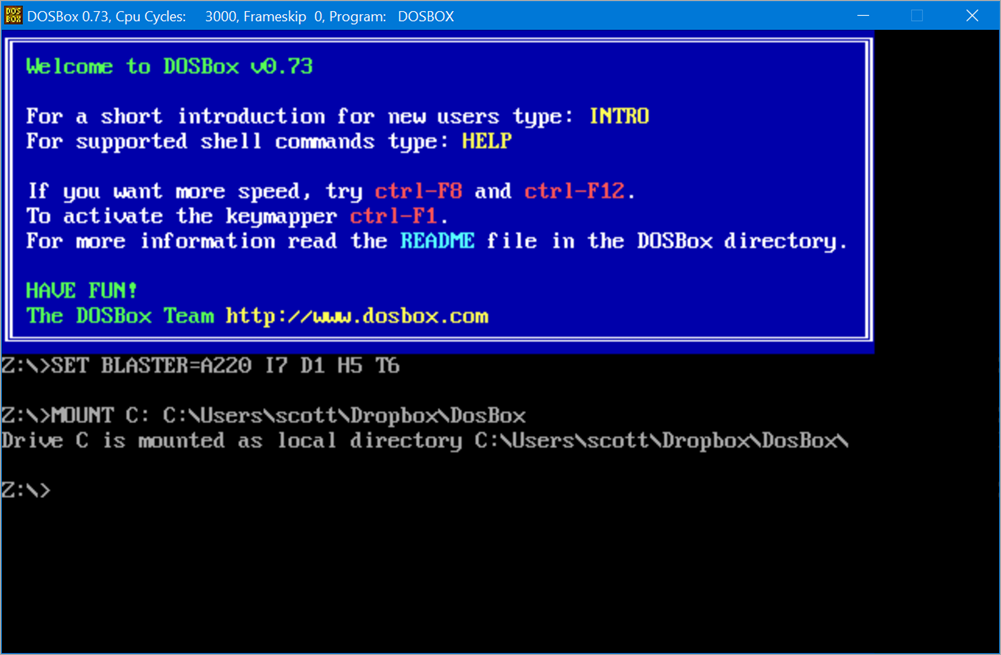
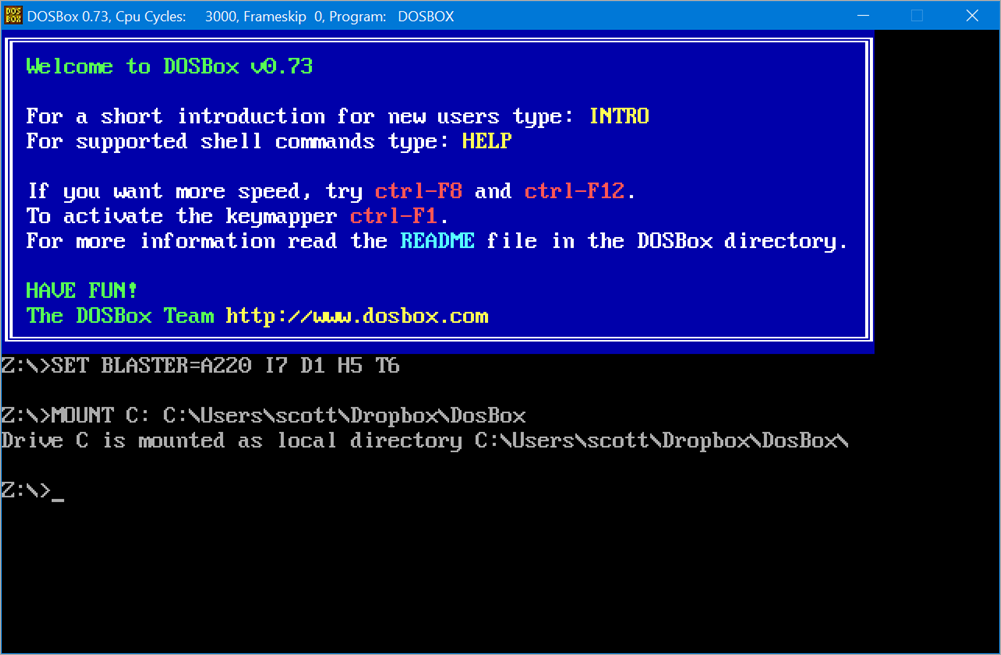
The first thing you should do is add lines like these to the bottom of your dosbox.conf. You’ll want your virtual C: drive mounted every time DOSBox starts up!

[autoexec]
# Lines in this section will be run at startup.
MOUNT C: C:\Users\scott\Dropbox\DosBox

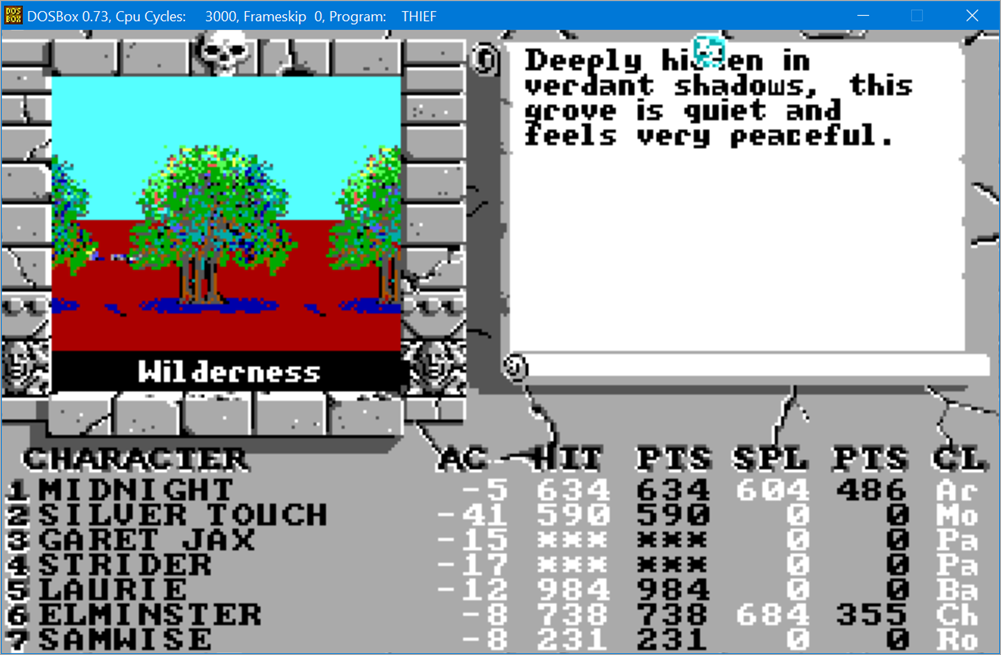
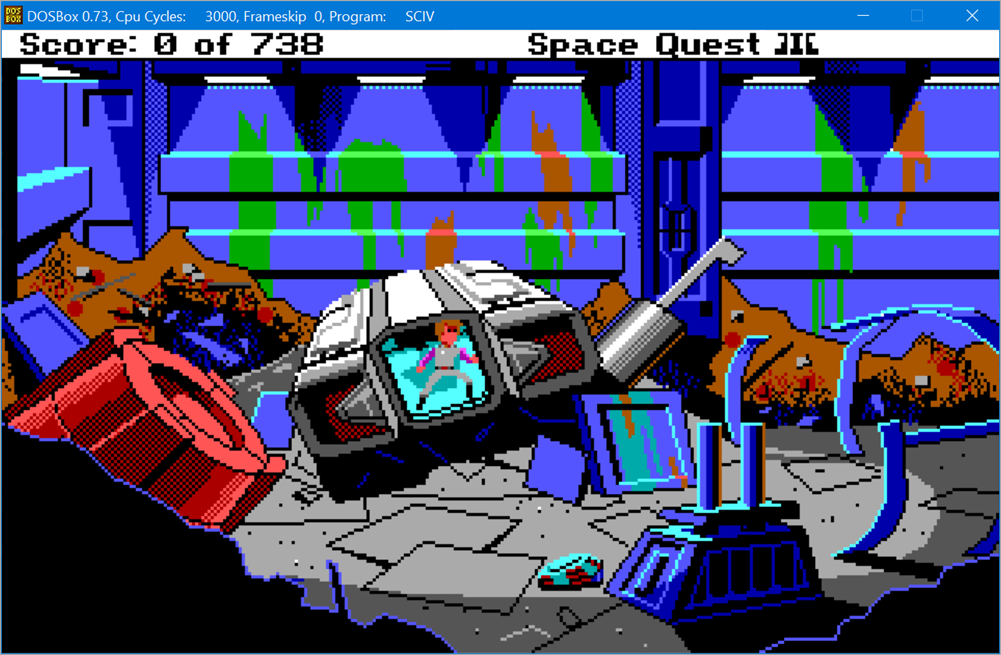
If you want to play classic games but don’t want the hassle (or questionable legality) of other ways, I’d encourage you to spend some serious time at https://www.gog.com. They’ve packaged up a ton of classic games so they “just work.”

Bard's Tale 3
Space Quest 3

Enjoy! And THANK YOU to the folks that work on DOSBox for their hard work. It shows and we appreciate it.


Sponsor: Preview the latest JetBrains Rider with its Assembly Explorer, Git Submodules, SQL language injections, integrated performance profiler and more advanced Unity support.


© 2018 Scott Hanselman. All rights reserved.


from Scott Hanselman’s Blog http://feeds.hanselman.com/~/588687246/0/scotthanselman~Enjoy-some-DOS-Games-this-Christmas-with-DOSBox.aspx

Common Problems New Computer Programmers May Experience

Choosing the right career path can be extremely challenging.
For people who love figuring out the complexities of computer code, a career as
a programmer is a great option.

With over 300,000 existing computer programming positions
on the American job market, there is no denying this field is the wave of the
future. Having success as a computer programmer will require you to work hard
and practice coding on a daily basis.

Read below to find out about some of the most common
problems new computer programmers may experience.

Common Problems New Computer Programmers May Experience

Working With Outdated Equipment Can Be Problematic

If you plan on making your living as a computer programmer,
you need to invest some money into the latest technology. Having a laptop or
desktop computer that is built for performance is essential. Once you have
found the right computer setup, you may need to think about investing in some
professional IT support.

Working with a company that uses remote support software can benefit you greatly. With
remote IT support, you can get the computer or network problems you are dealing
with fixed quickly and correctly.

Debugging Code is Extremely Difficult

Spending days on end coding a new piece of software is
something you need to get used to as a new programmer. One of the biggest
challenges you will face is debugging your own code. Most large development
firms will have a quality assurance department that checks all of the code
written by computer programmers.

Often times, you will receive a long list of potential bugs
found by the quality assurance team that you will have to fix. Rather than
getting completely overwhelmed, you need to take this process step by step. If
you simply don’t understand what the bugs are, start by reproducing them.

By reproducing your errors, you can start to reverse
engineer and figure out what needs to be fixed. In some instances, you may need
to seek out some help from a more experienced programmer.

Adequate Communication is Key

Landing your first job as a computer programmer can be
extremely exciting. However, you may struggle with communication in your new
work environment.

This is why you will need to work hard to ensure you
understand the jobs your project manager gives you. Failing to get
clarification on what you are supposed to do will generally lead to a number of
mistakes being made.

Not only can poor communication lead to you making mistakes
in your work, but it can also cause workplace conflict. This is why instead of
being embarrassed to ask questions, you need to take notes and ensure every
base is covered before you start to code.

Difficulty Estimating Time of Completion

Becoming a successful computer programmer will require you
to work well under tight deadlines and pressure. When first starting out as a
programmer, you may miss a few deadlines due to your lack of experience.

You need to avoid making a habit of missing deadlines due to
the problems it can cause within the workplace. The best way to stay on task is
by breaking the project you are working on into a series of smaller tasks.

Mapping out your programming project like this will allow
you to get a clear picture of what needs to be done. If you are working on the
project at hand with other programmers, be sure to keep them in the loop
regarding your progress. Keeping communication levels high throughout the
progression of the project can help you avoid productivity problems.

While becoming a successful programmer will require lots of
hard work, it is well worth the effort. Seeking out a mentor in this industry
can help you avoid common mistakes with ease.

The post Common Problems New Computer Programmers May Experience appeared first on The Crazy Programmer.

from The Crazy Programmer https://www.thecrazyprogrammer.com/2018/12/common-problems-new-computer-programmers-may-experience.html

Android RSS Reader Tutorial

In this android rss reader tutorial we will see how to make demo app that can read rss of a website or blog. So without wasting much time lets begin.

Typically the rss feed of a website or blog look something like shown below.

<channel>
    <title></title>
    <link></link>
    <description></description>

    <item>
        <title></title>
        <link></link>
        <pubDate></pubDate>
        <description></description>
    </item>

    <item>
        <title></title>
        <link></link>
        <pubDate></pubDate>
        <description></description>
    </item>

	.
	.
	.
	.

</channel>

The data we get is in xml format.

Here channel tag is the root or the main element from where rss begins.

title shows the name of the website.

description tells the content of website.

link is the url to the website.

There are multiple item tags that contain article or post information like post title, link, publish date, etc.

First of all create a new android project to read the rss in android app.

Then we need to give internet permission in manifest to access the rss in application.

<uses-permission android:name="android.permission.INTERNET"/>

Now we are adding some of the dependency that we need in our project.

implementation 'com.android.support:design:28.0.0'
implementation 'com.android.support:recyclerview-v7:28.0.0'
implementation 'com.android.support:cardview-v7:28.0.0'

We are designing our activity_main.xml file.

activity_main.xml

<RelativeLayout xmlns:android="http://schemas.android.com/apk/res/android"
    xmlns:tools="http://schemas.android.com/tools"
    android:id="@+id/activity_main"
    android:layout_width="match_parent"
    android:layout_height="match_parent"
      tools:context=".MainActivity">

    <Button
        android:id="@+id/fetchFeedButton"
        android:layout_width="wrap_content"
        android:layout_height="wrap_content"
        android:layout_alignParentEnd="true"
        android:text="Fetch" />

    <android.support.design.widget.TextInputLayout
        android:id="@+id/textInputLayout"
        android:layout_width="match_parent"
        android:layout_height="wrap_content"
        android:layout_marginEnd="10dp"
        android:layout_toStartOf="@id/fetchFeedButton"
        android:hint="Rss feed source">

        <EditText
            android:id="@+id/rssFeedEditText"
            android:layout_width="match_parent"
            android:layout_height="wrap_content" />

    </android.support.design.widget.TextInputLayout>

    <TextView
        android:id="@+id/feedTitle"
        android:layout_width="match_parent"
        android:layout_height="wrap_content"
        android:layout_below="@id/textInputLayout"
        android:text="Feed Title: " />

    <TextView
        android:id="@+id/feedDescription"
        android:layout_width="match_parent"
        android:layout_height="wrap_content"
        android:layout_below="@id/feedTitle"
        android:text="Feed Description: " />

    <android.support.v4.widget.SwipeRefreshLayout
        android:id="@+id/swipeRefreshLayout"
        android:layout_width="match_parent"
        android:layout_height="match_parent"
        android:layout_below="@id/feedDescription"
        android:layout_marginTop="20dp">

        <android.support.v7.widget.RecyclerView
            android:id="@+id/recyclerView"
            android:layout_width="match_parent"
            android:layout_height="match_parent" />
    </android.support.v4.widget.SwipeRefreshLayout>
</RelativeLayout>

Here we are using swipe refresh layout just to refresh the rss content of a website.

Now we have to code MainActivity.java for building our functionality of application so first we have to reference xml components in java.

public class MainActivity extends AppCompatActivity {

    private RecyclerView mRecyclerView;
    private EditText mEditText;
    private Button mFetchFeedButton;
    private SwipeRefreshLayout mSwipeLayout;
    private TextView mFeedTitleTextView;
    private TextView mFeedDescriptionTextView;

    private List<RssFeedModel> mFeedModelList;
    private String mFeedTitle;
    private String mFeedContent;
    private String mFeedDescription;

    @Override
    protected void onCreate(Bundle savedInstanceState) {
        super.onCreate(savedInstanceState);
        setContentView(R.layout.activity_main);

        mRecyclerView = (RecyclerView) findViewById(R.id.recyclerView);
        mEditText = (EditText) findViewById(R.id.rssFeedEditText);
        mFetchFeedButton = (Button) findViewById(R.id.fetchFeedButton);
        mSwipeLayout = (SwipeRefreshLayout) findViewById(R.id.swipeRefreshLayout);
        mFeedTitleTextView = (TextView) findViewById(R.id.feedTitle);
        mFeedDescriptionTextView = (TextView) findViewById(R.id.feedDescription);


        mRecyclerView.setLayoutManager(new LinearLayoutManager(this));

        mFetchFeedButton.setOnClickListener(new View.OnClickListener() {
            @Override
            public void onClick(View view) {
                new FetchFeedTask().execute((Void) null);
            }
        });
        mSwipeLayout.setOnRefreshListener(new SwipeRefreshLayout.OnRefreshListener() {
            @Override
            public void onRefresh() {
                new FetchFeedTask().execute((Void) null);
            }
        });
    }

We have to define a java class called FetchFeedTask which is used to get the rss feed from url.

private class FetchFeedTask extends AsyncTask<Void, Void, Boolean> {

    private String urlLink;

    @Override
    protected void onPreExecute() {
        mSwipeLayout.setRefreshing(true);
        urlLink = mEditText.getText().toString();
    }

    @Override
    protected Boolean doInBackground(Void... voids) {
        if (TextUtils.isEmpty(urlLink))
            return false;

        try {
            if(!urlLink.startsWith("http://") && !urlLink.startsWith("https://"))
                urlLink = "http://" + urlLink;

            URL url = new URL(urlLink);
            InputStream inputStream = url.openConnection().getInputStream();
            mFeedModelList = parseFeed(inputStream);
            return true;
        } catch (IOException e) {
            e.printStackTrace();
        } catch (XmlPullParserException e) {
            e.printStackTrace();
        }
        return false;
    }

    @Override
    protected void onPostExecute(Boolean success) {
        mSwipeLayout.setRefreshing(false);

        if (success) {
            mFeedTitleTextView.setText("Feed Title: " + mFeedTitle);
            mFeedDescriptionTextView.setText("Feed Description: " + mFeedDescription);
            // Fill RecyclerView
            mRecyclerView.setAdapter(new RssFeedListAdapter(mFeedModelList));

        } else {
            Toast.makeText(MainActivity.this,
                    "Enter a valid Rss feed url",
                    Toast.LENGTH_LONG).show();
        }
    }
}

Now we are defining a list and parsing xml data to get the attribute of items from the rss feed we have extracted.

public List<RssFeedModel> parseFeed(InputStream inputStream) throws XmlPullParserException,
        IOException {
    String title = null;
    String content = null;
    String description = null;
    boolean isItem = false;
    List<RssFeedModel> items = new ArrayList<>();

    try {
        XmlPullParser xmlPullParser = Xml.newPullParser();
        xmlPullParser.setFeature(XmlPullParser.FEATURE_PROCESS_NAMESPACES, false);
        xmlPullParser.setInput(inputStream, null);

        xmlPullParser.nextTag();
        while (xmlPullParser.next() != XmlPullParser.END_DOCUMENT) {
            int eventType = xmlPullParser.getEventType();

            String name = xmlPullParser.getName();
            if(name == null)
                continue;

            if(eventType == XmlPullParser.END_TAG) {
                if(name.equalsIgnoreCase("item")) {
                    isItem = false;
                }
                continue;
            }

            if (eventType == XmlPullParser.START_TAG) {
                if(name.equalsIgnoreCase("item")) {
                    isItem = true;
                    continue;
                }
            }

            Log.d("MyXmlParser", "Parsing name ==> " + name);
            String result = "";
            if (xmlPullParser.next() == XmlPullParser.TEXT) {
                result = xmlPullParser.getText();
                xmlPullParser.nextTag();
            }

            if (name.equalsIgnoreCase("title")) {
                title = result;
            } else if (name.equalsIgnoreCase("content:encoded")) {
                content = result;
            } else if (name.equalsIgnoreCase("description")) {
                description = result;
            }

            if (title != null && content != null && description != null) {
                if(isItem) {
                    RssFeedModel item = new RssFeedModel(title, content, description);
                    items.add(item);
                }
                else {
                    mFeedTitle = title;
                    mFeedContent = content;
                    mFeedDescription = description;
                }

                title = null;
                content = null;
                description = null;
                isItem = false;
            }
        }

        return items;
    } finally {
        inputStream.close();
    }
}

Defining RssModel java class which we used to hold the attribute of every post.

public class RssFeedModel {

        public String title;
        public String content;
        public String description;

        public RssFeedModel(String title, String content, String description) {
            this.title = title;
            this.content = content;
            this.description = description;
        }
    }

Defining RecyclerAdapter to attach our list data to recyclerview.

public class RssFeedListAdapter
            extends RecyclerView.Adapter<RssFeedListAdapter.FeedModelViewHolder> {

        private List<RssFeedModel> mRssFeedModels;

        public  class FeedModelViewHolder extends RecyclerView.ViewHolder {
            private View rssFeedView;

            public FeedModelViewHolder(View v) {
                super(v);
                rssFeedView = v;
            }
        }

        public RssFeedListAdapter(List<RssFeedModel> rssFeedModels) {
            mRssFeedModels = rssFeedModels;
        }

        @Override
        public FeedModelViewHolder onCreateViewHolder(ViewGroup parent, int type) {
            View v = LayoutInflater.from(parent.getContext())
                    .inflate(R.layout.recycler_layout, parent, false);
            FeedModelViewHolder holder = new FeedModelViewHolder(v);
            return holder;
        }

        @Override
        public void onBindViewHolder(FeedModelViewHolder holder, int position) {
            final RssFeedModel rssFeedModel = mRssFeedModels.get(position);
            ((TextView)holder.rssFeedView.findViewById(R.id.titleText)).setText(rssFeedModel.title);

            if (android.os.Build.VERSION.SDK_INT >= android.os.Build.VERSION_CODES.N) {
                ((TextView)holder.rssFeedView.findViewById(R.id.descriptionText)).setText(Html.fromHtml(rssFeedModel.description,Html.FROM_HTML_MODE_LEGACY));
            } else {
                ((TextView)holder.rssFeedView.findViewById(R.id.descriptionText)).setText(Html.fromHtml(rssFeedModel.description));	//we have used Html.fromHtml() in textview to make our textView support html content
            }

            holder.itemView.setOnClickListener(new View.OnClickListener() {
                @Override
                public void onClick(View v) {

                    Intent intent=new Intent(getApplicationContext(),Final.class);
                    intent.putExtra("content",rssFeedModel.content);
                    startActivity(intent);

                }
            });


               }


        @Override
        public int getItemCount() {
            return mRssFeedModels.size();
        }
    }

Finally the MainActivity.java file will look like.

MainActivity.java

package com.example.anmol.rssdemo;

import android.content.Intent;
import android.os.AsyncTask;
import android.support.v4.widget.SwipeRefreshLayout;
import android.support.v7.app.AppCompatActivity;
import android.os.Bundle;
import android.support.v7.widget.LinearLayoutManager;
import android.support.v7.widget.RecyclerView;
import android.text.Html;
import android.text.TextUtils;
import android.util.Log;
import android.util.Xml;
import android.view.LayoutInflater;
import android.view.View;
import android.view.ViewGroup;
import android.webkit.WebView;
import android.widget.Button;
import android.widget.EditText;
import android.widget.TextView;
import android.widget.Toast;

import org.xmlpull.v1.XmlPullParser;
import org.xmlpull.v1.XmlPullParserException;

import java.io.IOException;
import java.io.InputStream;
import java.net.URL;
import java.util.ArrayList;
import java.util.List;
import java.util.regex.Matcher;
import java.util.regex.Pattern;

public class MainActivity extends AppCompatActivity {

    private RecyclerView mRecyclerView;
    private EditText mEditText;
    private Button mFetchFeedButton;
    private SwipeRefreshLayout mSwipeLayout;
    private TextView mFeedTitleTextView;
    private TextView mFeedDescriptionTextView;

    private List<RssFeedModel> mFeedModelList;
    private String mFeedTitle;
    private String mFeedContent;
    private String mFeedDescription;

    @Override
    protected void onCreate(Bundle savedInstanceState) {
        super.onCreate(savedInstanceState);
        setContentView(R.layout.activity_main);

        mRecyclerView = (RecyclerView) findViewById(R.id.recyclerView);
        mEditText = (EditText) findViewById(R.id.rssFeedEditText);
        mFetchFeedButton = (Button) findViewById(R.id.fetchFeedButton);
        mSwipeLayout = (SwipeRefreshLayout) findViewById(R.id.swipeRefreshLayout);
        mFeedTitleTextView = (TextView) findViewById(R.id.feedTitle);
        mFeedDescriptionTextView = (TextView) findViewById(R.id.feedDescription);


        mRecyclerView.setLayoutManager(new LinearLayoutManager(this));

        mFetchFeedButton.setOnClickListener(new View.OnClickListener() {
            @Override
            public void onClick(View view) {
                new FetchFeedTask().execute((Void) null);
            }
        });
        mSwipeLayout.setOnRefreshListener(new SwipeRefreshLayout.OnRefreshListener() {
            @Override
            public void onRefresh() {
                new FetchFeedTask().execute((Void) null);
            }
        });
    }
    private class FetchFeedTask extends AsyncTask<Void, Void, Boolean> {

        private String urlLink;

        @Override
        protected void onPreExecute() {
            mSwipeLayout.setRefreshing(true);
            urlLink = mEditText.getText().toString();
        }

        @Override
        protected Boolean doInBackground(Void... voids) {
            if (TextUtils.isEmpty(urlLink))
                return false;

            try {
                if(!urlLink.startsWith("http://") && !urlLink.startsWith("https://"))
                    urlLink = "http://" + urlLink;

                URL url = new URL(urlLink);
                InputStream inputStream = url.openConnection().getInputStream();
                mFeedModelList = parseFeed(inputStream);
                return true;
            } catch (IOException e) {
                e.printStackTrace();
            } catch (XmlPullParserException e) {
                e.printStackTrace();
            }
            return false;
        }

        @Override
        protected void onPostExecute(Boolean success) {
            mSwipeLayout.setRefreshing(false);

            if (success) {
                mFeedTitleTextView.setText("Feed Title: " + mFeedTitle);
                mFeedDescriptionTextView.setText("Feed Description: " + mFeedDescription);
                // Fill RecyclerView
                mRecyclerView.setAdapter(new RssFeedListAdapter(mFeedModelList));

            } else {
                Toast.makeText(MainActivity.this,
                        "Enter a valid Rss feed url",
                        Toast.LENGTH_LONG).show();
            }
        }
    }

    public List<RssFeedModel> parseFeed(InputStream inputStream) throws XmlPullParserException,
            IOException {
        String title = null;
        String content = null;
        String description = null;
        boolean isItem = false;
        List<RssFeedModel> items = new ArrayList<>();

        try {
            XmlPullParser xmlPullParser = Xml.newPullParser();
            xmlPullParser.setFeature(XmlPullParser.FEATURE_PROCESS_NAMESPACES, false);
            xmlPullParser.setInput(inputStream, null);

            xmlPullParser.nextTag();
            while (xmlPullParser.next() != XmlPullParser.END_DOCUMENT) {
                int eventType = xmlPullParser.getEventType();

                String name = xmlPullParser.getName();
                if(name == null)
                    continue;

                if(eventType == XmlPullParser.END_TAG) {
                    if(name.equalsIgnoreCase("item")) {
                        isItem = false;
                    }
                    continue;
                }

                if (eventType == XmlPullParser.START_TAG) {
                    if(name.equalsIgnoreCase("item")) {
                        isItem = true;
                        continue;
                    }
                }

                Log.d("MyXmlParser", "Parsing name ==> " + name);
                String result = "";
                if (xmlPullParser.next() == XmlPullParser.TEXT) {
                    result = xmlPullParser.getText();
                    xmlPullParser.nextTag();
                }

                if (name.equalsIgnoreCase("title")) {
                    title = result;
                } else if (name.equalsIgnoreCase("content:encoded")) {
                    content = result;
                } else if (name.equalsIgnoreCase("description")) {
                    description = result;
                }

                if (title != null && content != null && description != null) {
                    if(isItem) {
                        RssFeedModel item = new RssFeedModel(title, content, description);
                        items.add(item);
                    }
                    else {
                        mFeedTitle = title;
                        mFeedContent = content;
                        mFeedDescription = description;
                    }

                    title = null;
                    content = null;
                    description = null;
                    isItem = false;
                }
            }

            return items;
        } finally {
            inputStream.close();
        }
    }
    public class RssFeedModel {

        public String title;
        public String content;
        public String description;

        public RssFeedModel(String title, String content, String description) {
            this.title = title;
            this.content = content;
            this.description = description;
        }
    }

    public class RssFeedListAdapter
            extends RecyclerView.Adapter<RssFeedListAdapter.FeedModelViewHolder> {

        private List<RssFeedModel> mRssFeedModels;

        public  class FeedModelViewHolder extends RecyclerView.ViewHolder {
            private View rssFeedView;

            public FeedModelViewHolder(View v) {
                super(v);
                rssFeedView = v;
            }
        }

        public RssFeedListAdapter(List<RssFeedModel> rssFeedModels) {
            mRssFeedModels = rssFeedModels;
        }

        @Override
        public FeedModelViewHolder onCreateViewHolder(ViewGroup parent, int type) {
            View v = LayoutInflater.from(parent.getContext())
                    .inflate(R.layout.recycler_layout, parent, false);
            FeedModelViewHolder holder = new FeedModelViewHolder(v);
            return holder;
        }

        @Override
        public void onBindViewHolder(FeedModelViewHolder holder, int position) {
            final RssFeedModel rssFeedModel = mRssFeedModels.get(position);
            ((TextView)holder.rssFeedView.findViewById(R.id.titleText)).setText(rssFeedModel.title);

            if (android.os.Build.VERSION.SDK_INT >= android.os.Build.VERSION_CODES.N) {
                ((TextView)holder.rssFeedView.findViewById(R.id.descriptionText)).setText(Html.fromHtml(rssFeedModel.description,Html.FROM_HTML_MODE_LEGACY));
            } else {
                ((TextView)holder.rssFeedView.findViewById(R.id.descriptionText)).setText(Html.fromHtml(rssFeedModel.description));
            }

            holder.itemView.setOnClickListener(new View.OnClickListener() {
                @Override
                public void onClick(View v) {

                    Intent intent=new Intent(getApplicationContext(),Final.class);
                    intent.putExtra("content",rssFeedModel.content);
                    startActivity(intent);

                }
            });


               }


        @Override
        public int getItemCount() {
            return mRssFeedModels.size();
        }
    }

}

We have to define the layout used in every recyclerview post.

recycler_layout.xml

<LinearLayout
    android:layout_width="match_parent"
    android:layout_height="wrap_content"
    android:orientation="vertical">
<TextView
    android:id="@+id/titleText"
    android:layout_width="match_parent"
    android:layout_height="wrap_content"
    android:textStyle="bold" />

<TextView
    android:id="@+id/descriptionText"
    android:layout_width="match_parent"
    android:layout_height="wrap_content" />

<View
    android:layout_width="match_parent"
    android:layout_height="1dp"
    android:background="@color/colorAccent" />
</LinearLayout>

Atlast we have to use our adapter in our onPostExecute method to distribute our list in recyclerAdapter.

mRecyclerView.setAdapter(new RssFeedListAdapter(mFeedModelList));

We have defined another activity which is called when we click on anycard of recyclerView which opens full content of a post in webView.

activity_final.xml file

<?xml version="1.0" encoding="utf-8"?>
<android.support.constraint.ConstraintLayout xmlns:android="http://schemas.android.com/apk/res/android"
    xmlns:app="http://schemas.android.com/apk/res-auto"
    xmlns:tools="http://schemas.android.com/tools"
    android:layout_width="match_parent"
    android:layout_height="match_parent"
    tools:context=".Final">

    <WebView
        android:layout_width="match_parent"
        android:layout_height="match_parent"
        android:id="@+id/web"/>

</android.support.constraint.ConstraintLayout>

And we have to define its java class too.

Final.java

package com.example.anmol.rssdemo;

import android.support.v7.app.AppCompatActivity;
import android.os.Bundle;
import android.webkit.WebView;
import android.webkit.WebViewClient;

public class Final extends AppCompatActivity {

    WebView webview;
    @Override
    protected void onCreate(Bundle savedInstanceState) {
        super.onCreate(savedInstanceState);
        setContentView(R.layout.activity_final);

        webview=(WebView)findViewById(R.id.web);
        webview.getSettings().setJavaScriptEnabled(true);
        webview.loadData(getIntent().getStringExtra("content"),"text/html","UTF-8");
        webview.setWebViewClient(new WebViewClient());

    }
}
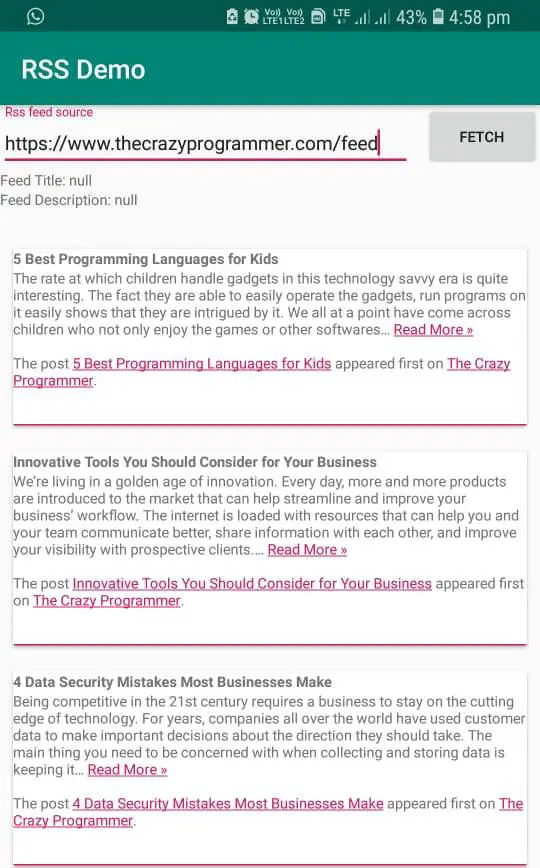
Android RSS Reader Tutorial

That’s all, now you can run your app in your physical device or in your emulator and see your rss feed in list format.

Comment below if you have any queries related to above android rss reader example.

The post Android RSS Reader Tutorial appeared first on The Crazy Programmer.

from The Crazy Programmer https://www.thecrazyprogrammer.com/2018/12/android-rss-reader-tutorial.html

5 Best Programming Languages for Kids

The rate at which children handle gadgets in this technology savvy era is quite interesting. The fact they are able to easily operate the gadgets, run programs on it easily shows that they are intrigued by it. We all at a point have come across children who not only enjoy the games or other softwares but have shown interest in asking questions on how the softwares are programmed. One of the best ways of keeping them fascinated is by teaching them programming languages, i.e., coding or by making them write a mini research paper to spur their interest in coding

5 Best Programming Languages for Kids

Image Source

Computer software, applications and websites applications are developed by using programming language commonly referred to as ‘coding’. Coding is basically the process of giving instructions to our computer to act in certain ways or perform certain tasks. Coding is important for children because it allows them to develop different skills such as problem-solving skill(the breaking down of instructions to the lowest opens up their analytical and logical mind), it also increases their creativity (by opening up their imaginative mind, allows them to creatively improve on other apps they find lacking in a particular aspect, allows them to even create their own app to solve a problem), allows them intelligently have fun rather than wasting time on irrelevances and besides coding is the new cool lucrative means of income.

When it comes to technology, everything is codes and programming. Imagine if you searched for “who can write my research paper for me” on the internet, what gives you your desired result is a function of coding. There are a lot of programming languages that children can learn how to code from at the basic and intermediate level.

5 Best Programming Languages for Kids

5 Best Programming Languages for Kids

Image Source

1. Scratch

Scratch is a programming language built by MIT’s Lifelong Kindergarten Lab.  Scratch is a free programming language that can be used without an online connection for kids who are mostly interested in animations, games, music or arts. It has an interactive online community where kids can connect with other kids and share their developed applications.  It uses a building-block visual interface.

Scratch has an interactive and user-friendly interface that naturally attracts children. It also allows a child to freely express his or her creativity to design games or animations from scratch as the name implies. Scratch is suggested for kids within the age bracket of 6-15 years of age.  It has a tutorial guide for beginners.

2. Python

Python is regarded as the easiest of programming languages to learn.  This is partly because of its basic composition and attention on whitespace. It is said to be named after the comedy series Monthly Python. It is recommended for all age brackets. It is the first stepping stone to increase your child’s interest in coding.  To show its usefulness, even Google and Disney make use of it. With python, coding can be used to create video games, numeric computing tasks, web fireworks, etc.

Python delivers like regular language. It rarely requires the use of comments because it functions with Basic English language. Python programming language also has a section for its library where it allows children to further code beyond the basic.

Python teaches children the patience and analytical skill to overcome complexities which would come from one of their strengths later in life.

3. Ruby

Ruby has the most decipherable composition for beginners. Ruby is expressive, intuitive, simple and powerful. Ruby teaches the child to freely express his or herself because it allows them to choose from different methods to solve a problem. Ruby uses blocks and first-class objects. Ruby also has a standard library and an interactive shell. Ruby is concise, well documented (extensive API docs) has an easy to understand the language that does not require extra explanations. With Ruby, the kid gets familiar with programming concepts like variables, loops, object-oriented programming, etc.

4. Lua

Lua is a free, powerful, fast and user-friendly programming language that is easily understood by kids. Lua is popularly used as a scripting language platform by game developers Because of its speed and lightness. Lua is perfect for children who are into game developing at any stage including animations. Lua engages its user by introducing simple concepts while retaining its legibility, clarity, and productivity.  Lua also removes the syntax problem that makes coding difficult for kids.

5. Blockly

Blockly is a visual block programming language built on other existing programming languages to help children become experts at coding. Blockly is essentially developed for kids 8 years and above who are learning how to code within the confines of their homes or at school.

Blokly has a “JavaScript library ” feature, a  specific UI bearing a resemblance to multi-colored and multi-shaped blocks holding and a toolbox holding the block and bin to write codes in. In operating Blockly, kids remove the blocks from the toolbox one by one and arrange them structurally until the quest is solved. Upon completion, Blockly runs a check up to assess the coding done to check for its errors.

Author Bio

Emma Rundle is a seasoned writer with a wealth of experience in technical writing. She has written as a guest writer for a number of blogs and media channels. Emma also has a bit of experience in coding and programming and ethical hacking which she sometimes does as a hobby.

The post 5 Best Programming Languages for Kids appeared first on The Crazy Programmer.

from The Crazy Programmer https://www.thecrazyprogrammer.com/2018/12/programming-languages-for-kids.html

Design a site like this with WordPress.com
Get started