Difference between UX and UI

Here you will learn about UX vs UI i.e. difference between UX and UI.

Today, we are going to shed some light on one of the hottest topics in IT world. There always exist a lot of buzz on whether the UX (User Experience) and UI (User Interface) are both the same, if not then how are they different.

Difference between UX and UI

Image Source

These two are the terms that nearly every one of us must have heard, either we share a technical background or we don’t belong to it. It is obviously not only the case with the commons but highly respected developers and designers are often spotted struggling while demonstrating any of the two. Let us break this article down into chunks and try to understand the whole concept behind the two tech-jargons, UX and UI practically. Obviously with some examples when required.

We have observed this situation quite a lot times and almost every one among us can relate to this, we all must have witnessed a product launch of some tech gadgets live or on the television at some point of time. If anyone of us ever paid attention to the details then we could have very easily spotted that the chairperson or the president of the company when giving demonstration about the product’s UX describe a lot about the UI features (unknowingly obviously). So, why people not get confused (we can’t even blame the officials though). The two terms are so closely related and too because of several sources, are often misunderstood.

As of now think of UX as the experience you get while using a product ( that is either good, average or bad), while an UI can be thought of as the graphic appearance of a website (which you may like or not).

What do Acronyms say?

We have to admit the truth that both the terms are working closely for a product, but despite this similarity in the professional run, if we talk about their roles, we will observe them as possessing different capabilities when talking in reference to process and design discipline. Where we can think UX as more of technical and analytical process, the UI should be thought of as the way of expressing the summary of the product to the users with the help of visuals (graphics). We know it is not that easy to understand as looks, but no worries we have got you covered. I was going through a website and got this really cool example to understand the concept of UX and UI in a more practical way.

Let’s suppose human body as a product (digital) for a while, the code of the product which gives it a robust structure are bones. If there is a body then there must be the organs within, these organs are the UX design: functions of the life are supported by optimizing and measuring against input. Now the UI is the aesthetics and appearance of the body: that is how the body structure is presented to the world, how it reacts to the inputs and the senses of the body.

Don’t worry if you don’t get the explanations yet, there are many. We will provide a detailed elaboration for both the terms. Also we will come up with a set of differences in the end of this article. Get tuned.

What is User Experience (UX)
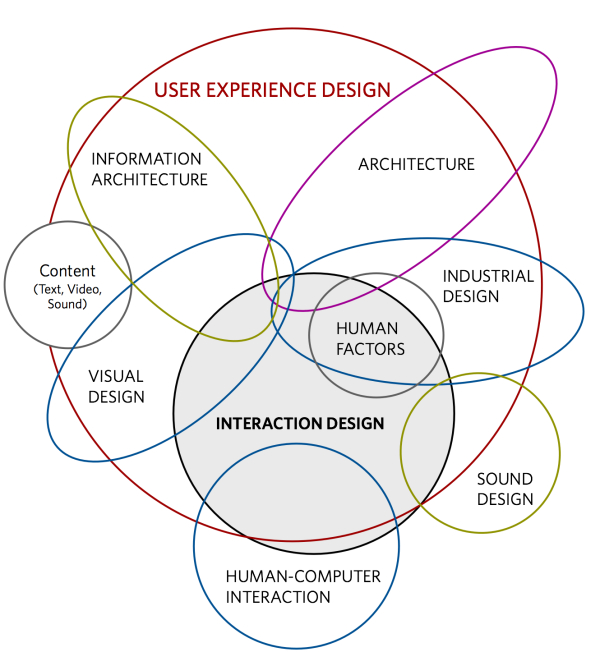
What is User Experience (UX)

Image Source

As we have talked earlier in this post, despite all buzz, we still are with our words that UX and UI are not the very same and of course we will get to this conclusion as we proceed towards the end of this post. Okay, so we are going to provide you with an intuitive intro of the UX and will leave it to you to differentiate between the two. We can say about the UX that it primarily focuses on how the product is going to respond to the calls, it spreads out to an interactive portion of the product. It includes how better is the structure of the product and how well it handles the user requests. Obviously most of us do not hesitate to add ‘UX’ to our daily vocab in technical world, but we need to understand this thing for sure that when we are talking about how the things are been portrayed, what should be the background colour, clicking button should perorm what animation, etc., then stop for a while and think whether we are really talking about the UX only. Let me tell our readers, these are all the part of the interface and thus should be treated as under the roof of UI itself (not UX). And this provides our discussion one firm proof to facilitate differentiate between the terms UI and UX.

If we put ‘tech’ aside for a while, the UX designing is a process inclined towards providing a better usability and easy interaction of user with the product, which in turn result in loyalty of the users for respective product. So, the conclusion here is, at any moment if anyone is talking about the UX, then we immediately will have to understand that he is inclined more towards a quality product and product-human interaction rather than aesthetics and outer appearances.

What is User Interface (UI)
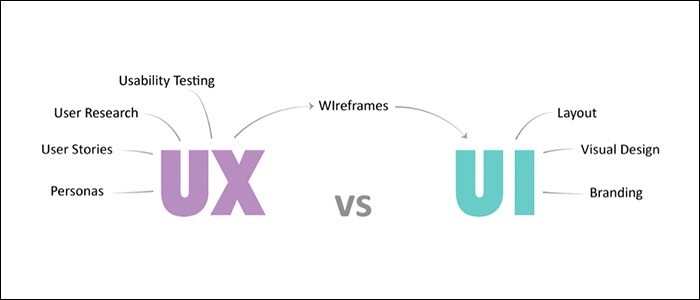
What is User Interface (UI)

Image Source

As of now we’ve talked about the UX,  now heading towards the most prominent word misunderstood with UX, that is UI. UI only focuses on the beauty and appearance of the product. Suppose if we are talking about a webpage, then UI’s responsibility is to ensure in what better way the webpage can be displayed to the users, what should be the size and color of the button, which animation will look good, how should the dropdown will respond to clicks, etc. Moreover where the button and dropdowns should be placed so that the user will love, is the responsibility of the UX designer.

One more thing is need to be said today that the scripting languages like HTML or CSS or JQuery or whether it is Silverlight, are responsible for designing beautiful interfaces only, neither user experience. With this being said, let us now see a comparative study of the two for a more vivid understanding.

Difference between UX and UI

Though there are not much, but we can list out some of the differences which makes the two terminologies stand apart. Let’s have a look.

                                     UX                                         UI
It makes the interfaces useful. It is used for making the interface beautiful.
It helps the users to accomplish their goals. These are useful for attaching the users  emotionally to the product.
Most probably is done first. Is usually carried out second.
Finds use in products, interfaces and services. Confined to the interfaces only.
Provides usability. Provides aesthetics.

I hope this article provides a clear understanding about difference between UX and UI.

The post Difference between UX and UI appeared first on The Crazy Programmer.

from The Crazy Programmer https://www.thecrazyprogrammer.com/2018/09/difference-between-ux-and-ui.html

How do you use System.Drawing in .NET Core?

I’ve been doing .NET image processing since the beginning. In fact I wrote about it over 13 years ago on this blog when I talked about Compositing two images into one from the ASP.NET Server Side and in it I used System.Drawing to do the work. For over a decade folks using System.Drawing were just using it as a thin wrapper over GDI (Graphics Device Interface) which were very old Win32 (Windows) unmanaged drawing APIs. We use them because they work fine.

.NET Conf: Join us this week! September 12-14, 2018 for .NET Conf! It’s a FREE, 3 day virtual developer event co-organized by the .NET Community and Microsoft. Watch all the sessions here. Join a virtual attendee party after the last session ends on Day 1 where you can win prizes! Check out the schedule here and attend a local event in your area organized by .NET community influencers all over the world.

DotNetBotFor a while there was a package called CoreCompat.System.Drawing that was a .NET Core point of a Mono version of System.Drawing. However, since then Microsoft has released System.Drawing.Common to provide access to GDI+ graphics functionality.

There is a lot of existing code – mine included – that makes assumptions that .NET would only ever run on Windows. Using System.Drawing was one of those things. The “Windows Compatibility Pack” is a package meant for developers that need to port existing .NET Framework code to .NET Core. Some of the APIs remain Windows only but others will allow you to take existing code and make it cross-platform with a minimum of trouble.

Here’s a super simple app that resizes a PNG to 128×128. However, it’s a .NET Core app and it runs in both Windows and Linux (Ubuntu!)

using System;

using System.Drawing;
using System.Drawing.Drawing2D;
using System.Drawing.Imaging;
using System.IO;

namespace imageresize
{
class Program
{
static void Main(string[] args)
{
int width = 128;
int height = 128;
var file = args[0];
Console.WriteLine($"Loading {file}");
using(FileStream pngStream = new FileStream(args[0],FileMode.Open, FileAccess.Read))
using(var image = new Bitmap(pngStream))
{
var resized = new Bitmap(width, height);
using (var graphics = Graphics.FromImage(resized))
{
graphics.CompositingQuality = CompositingQuality.HighSpeed;
graphics.InterpolationMode = InterpolationMode.HighQualityBicubic;
graphics.CompositingMode = CompositingMode.SourceCopy;
graphics.DrawImage(image, 0, 0, width, height);
resized.Save($"resized-{file}", ImageFormat.Png);
Console.WriteLine($"Saving resized-{file} thumbnail");
}
}
}
}
}

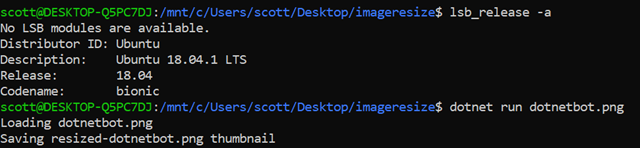
Here it is running on Ubuntu:

Resizing Images on Ubuntu

NOTE, on Ubuntu (and other Linuxes) you may need to install some native dependencies:

sudo apt install libc6-dev 

sudo apt install libgdiplus

There’s lots of great options for image processing on .NET Core now! Some are:

  • ImageSharp – A cross-platform library for the processing of image files; written in C#
  • Magick.NET -A .NET library on top of ImageMagick
  • SkiaSharp – A .NET wrapper on top of Google’s cross-platform Skia library

It’s awesome that there are so many choices with .NET Core now!


Sponsor: Rider 2018.2 is here! Publishing to IIS, Docker support in the debugger, built-in spell checking, MacBook Touch Bar support, full C# 7.3 support, advanced Unity support, and more.


© 2018 Scott Hanselman. All rights reserved.


from Scott Hanselman’s Blog http://feeds.hanselman.com/~/569206030/0/scotthanselman~How-do-you-use-SystemDrawing-in-NET-Core.aspx

Python CGI Programming

Python Programming language is broadly used by developers to create standalone, desktop, enterprise and web applications these days. Here in this article, I’m going to cover trending CGI programming in python. If you have just marked your presence in the python programming universe, then I believe you should go for Simplilearn’s Python Training accessible anytime over the internet. Here, you’ll learn about developing simple to complex python based applications with briefly described basics to advanced terms used in programming. It will also make you develop the python programming based game- flappy bird clone.

Python CGI Programming

CGI (Common Gateway Interface), is a group of standards for defining the data exchange among server and customized scripts. The CGI specifications are managed by NCSA.

What is Common Gateway Interface?

CGI is a set of standard designed for external gateway programs. It assists them to connect through the servers such as HTTP server. The latest version available is CGI 1.1 and CGI 1.2 is under development.

Web Browsing

Allow me to explain the concept of CGI in an elaborative way. Let’s check out what happens when you click on a particular hyperlink for browsing a URL:

  • The browser connects with HTTP web server by sending a request demanding for the URL, that is, filename.
  • Web server parses the URL and searches for the name of the file. If it recognise that file, sends it back to the main client such as browser. And, if not, an error message will be indicated, saying you requested a wrong file.
  • Browser collects the response from the web server. It either displays the error message or collected file to the client.

Though, it is easy to create an HTTP server so that server can directly return output to the browser made request by executing the file instead of sending file. This feature is known as Common Gateway Interface or CGI. The programs written for it are known as CGI scripts. If Python is not your primary programming language, don’t worry, you can write CGI programs in PERL, C, C++, Shell etc.

Web Server Configuration

Talking more about the CGI programming always ensure that your web server supports CGI. Also, it is capable of handling CGI scripts. A pre-configured directory will be stored in the HTTP server for running all the CGI scripts. The name of this directory is CGI directory. The convention path will be /var/www/cgi-bin. CGI files support .cgi extension. Best part is you can also keep your python .py extension files in this folder.

The Linux server executes these scripts in cgi-bin directory as /var/www. For defining any specific directory to execute your script, you can make following changes in httpd.conf file:

<Directory "/usr/var/www/cgi-bin">
AllowOverride None
Options ExecCGI +MultiViews
Require all granted
</Directory>

<Directory "/var/www/cgi-bin">
Options All
</Directory>

Now, you got a web server and you are free to execute any program written in C, Perl etc.

Writing CGI Program

Let’s start by writing a simple python script which will be pointing to a CGI script known as firstpgm.py. This file is stored in the folder /var/www/cgi-bin. Now, before execution, make sure to change permission by using Unix command chmod for execution.

Chmod 755 firstpgm.py

File:

#!/usr/bin/python

print "content-type: text/html/r/n/r/n" 
print '<html>'
print '<head>'
print '<title> Hi all- first program</title>'
print '</head>'
print '<body>'
print '<h3> Yo- successfully executed my program</h3>'
print '</body>'
print '</html>'

On execution, an output will be shown:

Yo- successfully executed my program

HTTP Header

In the above program the content-type: text/html\r\n\r\n represents a HTTP header. It is sent to the browser for recognising content.

Various HTTP-headers are: Content-type, Location: URL, Set Cookie: String, Content-Length: N, Last-Modified: Date, Expires: Date.

Environment Variables in CGI

The environment variables are accessible from programs. Few environment variables broadly used in the programming are following:

  • CONTENT_TYPE: It represents the data type of the content sent by client to the server.
  • HTTP_COOKIE: key and value pair cookie setup.
  • PATH_INFO: represents the CGI script path.
  • REMOTE_ADDR: used for authentication. It displays the IP   of the remote host.
  • REQUEST_METHOD: methods used for requests like GET and POST.
  • REMOTE_HOST: It displays the hostname.
  • SCRIPT_NAME: It displays the script name.
  • SERVER_NAME: hostname of server.
  • SERVER_SOFTWARE: name and version of software running over the server.
  • QUERY_STRING: It takes the URL information. This information is taken by GET method.

You can also check the list of environment variables by writing script:

#!/usr/bin/python

import os

print "Content-type: text/html\r\n\r\n";
print "<font size=+4>Environment</font><\br>";
for param in os.environ.keys():
   print "<b>%20s</b>: %s<\br>" % (param, os.environ[param])

Final Words

In this article, I’ve covered the key pillar of the backend programing-CGI. I hope now you’ll able to develop your application in an effective manner. Feel free to ask any question..!!

The post Python CGI Programming appeared first on The Crazy Programmer.

from The Crazy Programmer https://www.thecrazyprogrammer.com/2018/09/python-cgi-programming.html

The Extremely Promising State of Diabetes Technology in 2018

This blog post is an update to these two Diabetes Technology blog posts:

You might also enjoy this video of the talk I gave at WebStock 2018 on Solving Diabetes with an Open Source Artificial Pancreas*.

First, let me tell you that insulin is too expensive in the US.

Between 2002 and 2013, the price of insulin jumped, with the typical cost for patients increasing from about $40 a vial to $130.

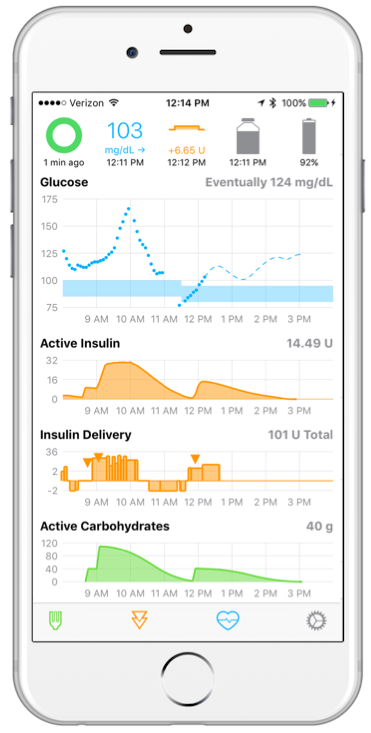
Open Source Artificial Pancreas on iPhoneFor some of the newer insulins like the ones I use, I pay as much as $296 a bottle. I have a Health Savings Plan so this is often out of pocket until I hit the limit for the year.

People in America are rationing insulin. This is demonstrable fact. I’ve personally mailed extra insulin to folks in need. I’ve meet young people who lost their insurance at age 26 and have had to skip shots to save vials of insulin.

This is a problem, but on the technology side there’s some extremely promising work happening, and it’s we have really hit our stride in the last ten years.

I wrote the first Glucose Management system for the PalmPilot in 1998 called GlucoPilot and provided on the go in-depth analysis for the first time. The first thing that struck me was that the PalmPilot and the Blood Sugar Meter were the same size. Why did I need two devices with batteries, screens, buttons and a CPU? Why so many devices?

I’ve been told every year the a Diabetes Breakthrough is coming “in five years.” It’s been 25 years.

In 2001 I went on a trip across the country with my wife, an insulin pump and 8 PDAs (personal digital assistants, the “iPhones” of the time) and tried to manage my diabetes using all the latest wireless technology…this was the latest stuff 17 years ago. I had just moved from injections to an insulin pump. Even now in 2018 Insulin Pumps are expensive, mostly proprietary, and super expensive. In fact, many folks use insulin pumps in the states use out of warranty pumps purchased on Craigslist.

Fast forward to 2018 and I’ve been using an Open Source Artificial Pancreas for two years.

The results speak for themselves. While I do have bad sugars sometimes, and I do struggle, if you look at my blood work my HA1c (the long term measurement of “how I’m doing” shows non-diabetic levels. To be clear – I’m fully and completely Type 1 diabetic, I produce zero insulin of my own. I take between 40 and 50 Units of insulin every day, and have for the last 25 years…but I will likely die of old age.

This is significant. Why? Because historically diabetics die of diabetes. While we wait (or more accurately, #WeAreNotWaiting) for a biological/medical solution to Type 1 diabetes, the DIY (Do It Yourself) community is just doing it ourselves.

Building on open hardware, open software, and reverse-engineered protocols for proprietary hardware, the online diabetes community literally has their choice of open source pancreases in 2018! Who would have imagined it. You can choose your algorithms, your phone, your pump, your continuous glucose meter.

Today, in 2018, you can literally change the code and recompile a personal branch of your own pancreas.

Watch my 2010 YouTube video “I am Diabetic” as I walk you through the medical hardware (pumps, needles, tubes, wires) in managing diabetes day to day. Then watch my 2018 talk on Solving Diabetes with an Open Source Artificial Pancreas*.

I believe that every diabetic should be offered a pump, a continuous glucose meter, and trained on some kind of artificial pancreas. A cloud based reporting system has also been a joy. My wife and family can see my sugar in real time when I’m away. My wife has even called me overseas to wake me up when I was in a bad sugar situation.

Artificial Pancreas generations

As the closed-hardware and closed-software medical companies work towards their own artificial pancreases, the open source community feel those companies would better serve us by opening up their protocols, using standard Bluetooth ISO profiles and use security best practices.

Looking at the table above, the open source community is squarely in #4 and moving quickly into #5. But why did we have to do this ourselves? We got tired of waiting.

All in all, through open software and hardware, I can tell you that my life is SO MUCH BETTER than it was when I was first diagnosed. I figure we’ll have this all figured out in about five years, right? 😉

THANK YOU!

MORE DIABETES READING

* Yes there are some analogies, stretched metaphors, and oversimplifications in this talk. This talk is an introduction to the space to the normally-sugared. If you are a diabetes expert you might watch and say…eh…ya, I mean, it kind of works like that. Please take the talk in in the thoughtful spirit it was intended.


Sponsor: Get home early, eat supper on time and coach your kids in soccer. Moving workloads to Azure just got easy with Azure NetApp Files. Sign up to Preview Azure NetApp Files!


© 2018 Scott Hanselman. All rights reserved.


from Scott Hanselman’s Blog http://feeds.hanselman.com/~/568851230/0/scotthanselman~The-Extremely-Promising-State-of-Diabetes-Technology-in.aspx

Creating First Django Project

Alright fellows, so in this tutorial we’re going to create our very first django project. Here I am assuming that you all have installed Django 2 in your system. Django has a great way for us whenever you want to start a new project. It simply creates a new template for us then we can customize it however like to.

How to Create Django Project

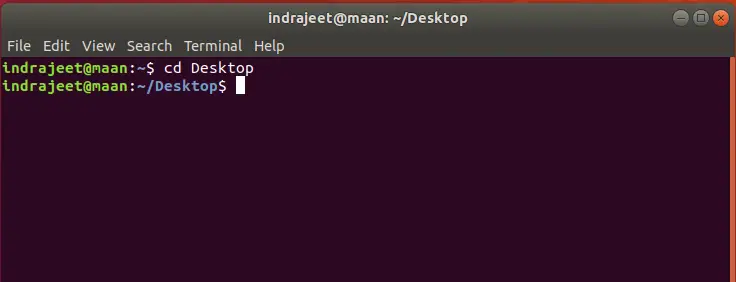
Open terminal or command prompt and navigate to the directory where you want to save your project. Let’s say if you want to save your project on Desktop then open terminal/command prompt and type:

cd Desktop 

First Django Project 1

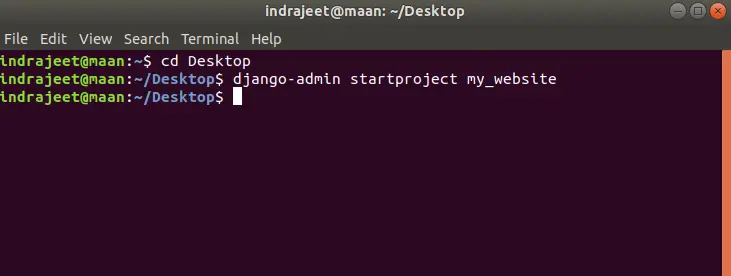
Now you are in your desktop directory, to create a new project type following command and hit enter:

django-admin startproject  project_name

First Django Project 2

In above picture django-admin is a command that can do lot of other stuff for us, to see all the possible commands for django-admin just type below command and hit enter.

django-admin help

It will show you all options that we can use along with django-admin command. Start project is showing us that we’re going to create a new project and my_website is the name of our project, you can name it as you want.

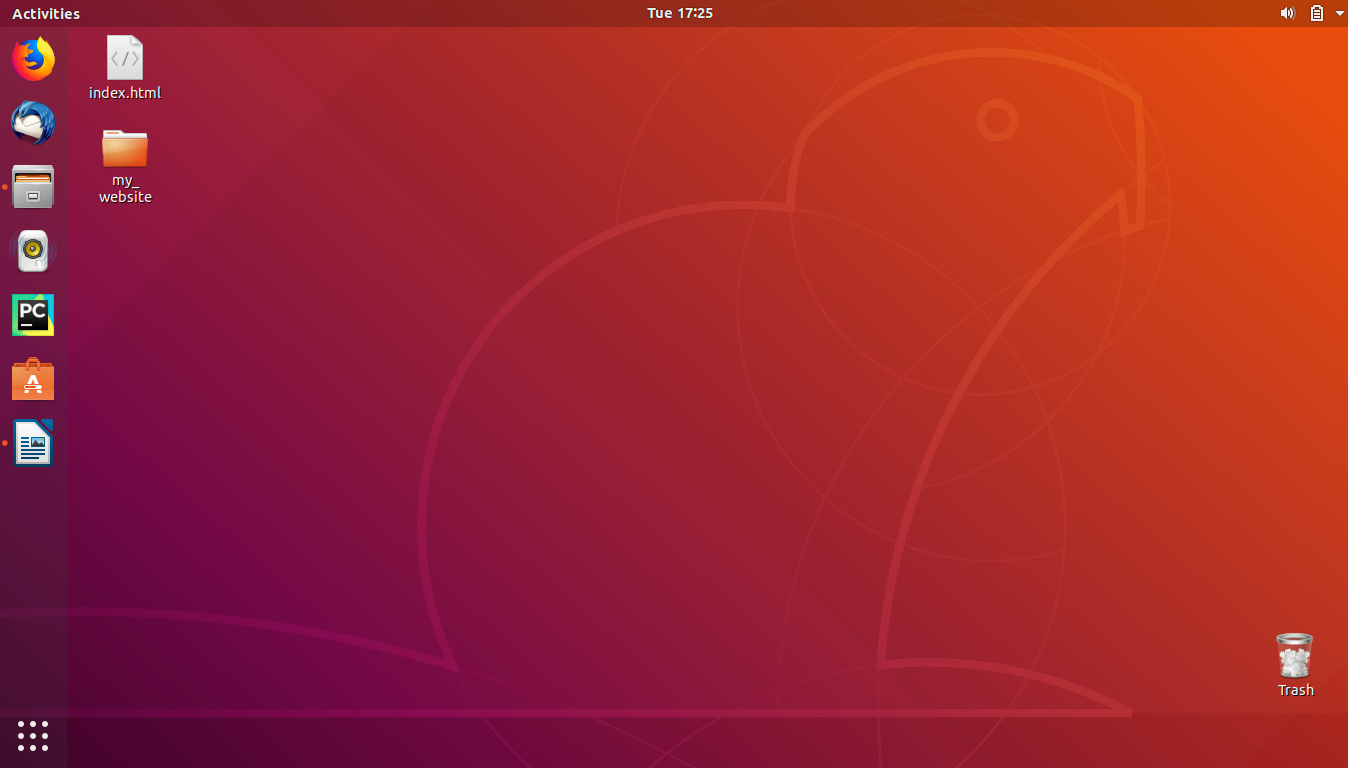
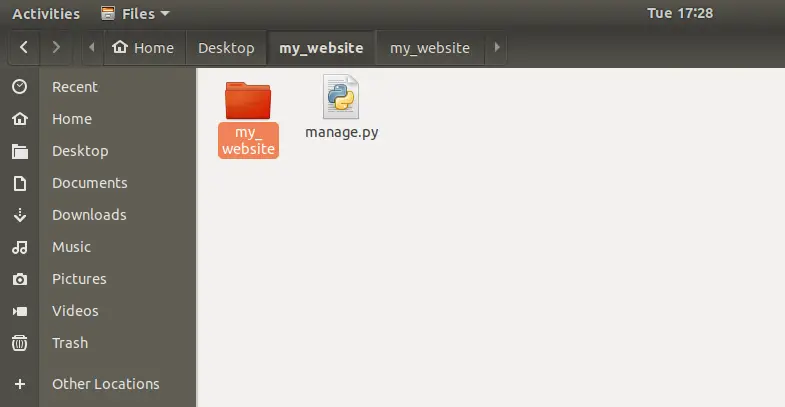
After this command, you can see that there is a directory created on your desktop with the name of your project.

First Django Project 3

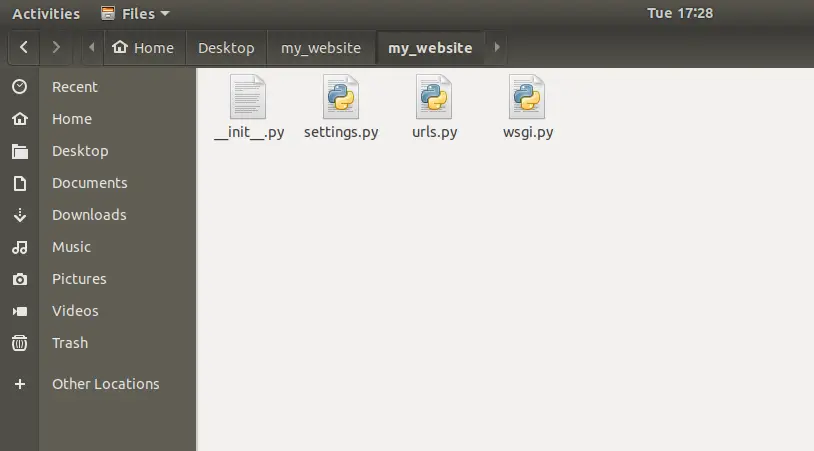
Inside that folder you can see some Python files.

First Django Project 4

First Django Project 5

Now we have our project. Let’s see that how we can run this little website.

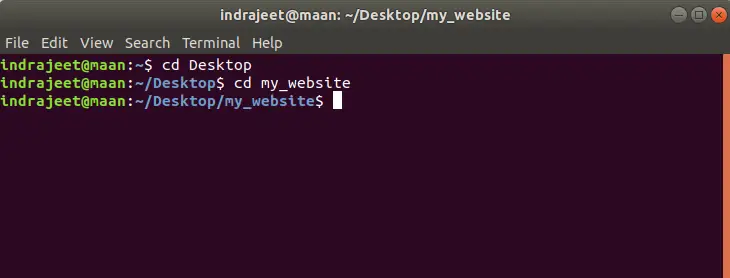
To do that let’s move back to the terminal and again navigate to Desktop if you are not already there. Now get into the directory of our project by typing following command:

cd project_name

First Django Project 6

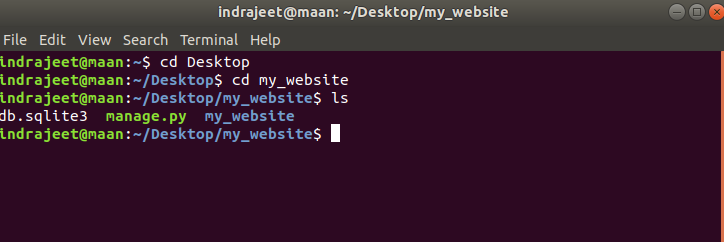
We’re inside our project, now type ls command to see the files in our project.

First Django Project 7

Here you can see that there is a file named as manage.py, which let’s us start our website and it will grab all the files from the directory my_website that is inside our project folder (you can see in above picture).

How to Run Django Project

To run and test our project type the command below:

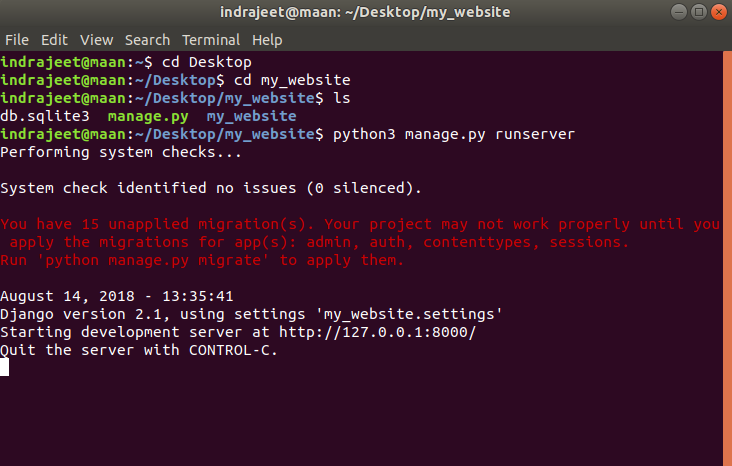
python3 manage.py runserver

First Django Project 8

If you have only Python 3 installed in your system then you can use python instead of python3 in above command.

This command will start a little web-server on our computer (hosting our django project). See the output in above picture, there is a line saying “Starting development server at http://127.0.0.1:8000/&#8221;. So now copy this url http://127.0.0.1:8000/ and open it in any internet browser.

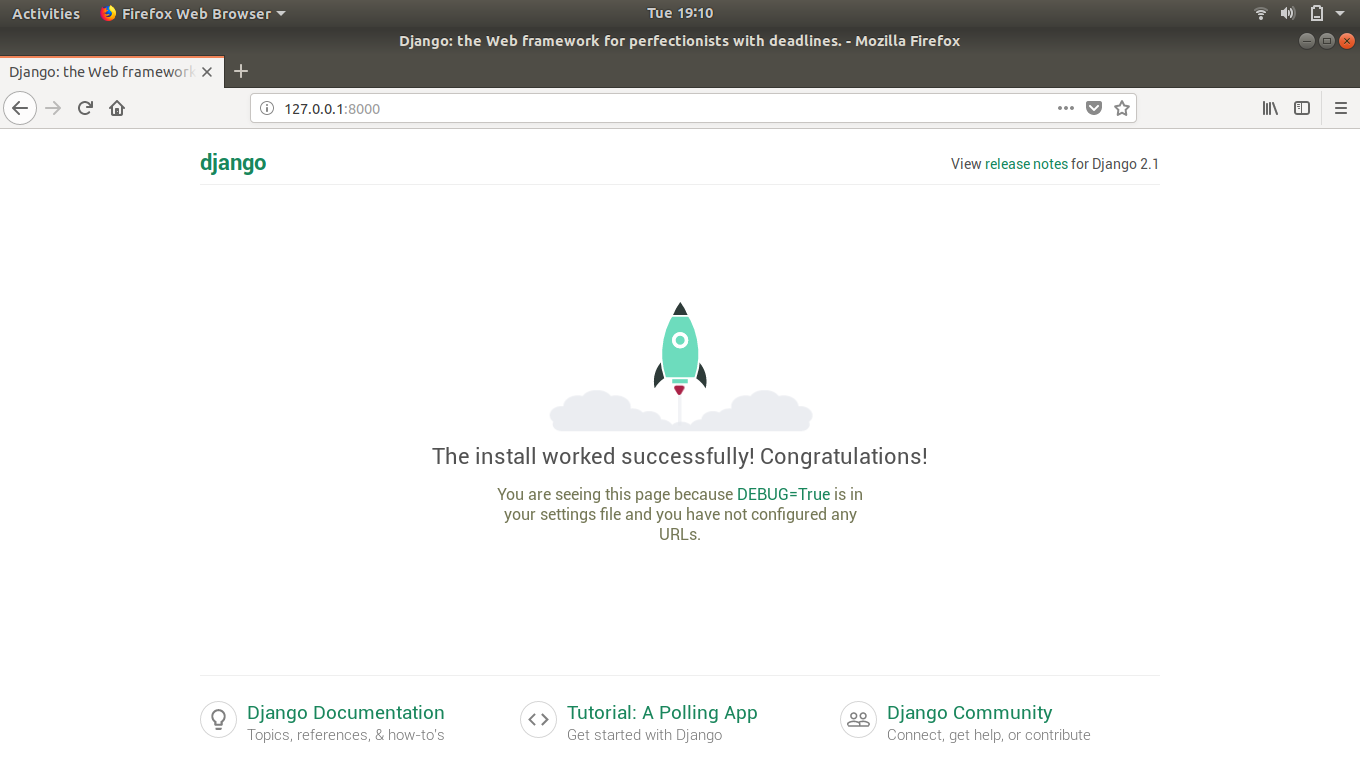
First Django Project 9

If all steps goes right then you’ll get the screen like above picture. If yes then Congratulation your website is up and running here in your local computer.

Now in the link we have http://127.0.0.1:8000/, here 127.0.0.1 is localhost, that means your own computer and 8000 is port where our web-server is running.

To stop web-server just press ctrl+c (Control c) in terminal.

That’s all for this tutorial. If you’re facing any problem in any steps mentioned above then please let us know in comments.

The post Creating First Django Project appeared first on The Crazy Programmer.

from The Crazy Programmer https://www.thecrazyprogrammer.com/2018/09/first-django-project.html

Always Be Closing…Pull Requests

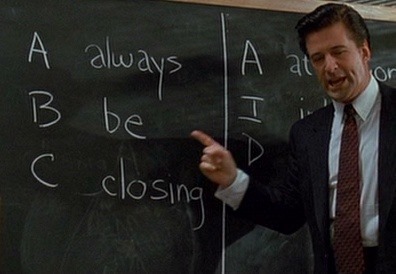
Always be closingI was looking at a Well Known Open Source Project on GitHub today. It had like 978 Pull Requests. A “PR” means “hey here’s some code I did for your project, you can PULL it from here and merge it into your code!”
But these were Open Pull Requests. Pending. Limbo Pull Requests. Dating back to 2015.

Why do Pull Requests stay open?

Why do projects keep Pull Requests open? What’s a reasonable amount of time? Here’s a few thoughts.

  • PR as Call to Action
    • PRs are a shout. They are HERE IS SOME CODE and they create work for the maintainer. They are needy things and require review and merging, but even worse, sometimes manual merging. Plus for folks new to Git and Open Source, asking them to “rebase on top of latest” may be enough for them to just give up.
  • Fear of Closing
    • If you close a PR without merging it, it’s a rejection. It’s a statement that this work isn’t going to be used, and there’s always a chance that the person who did the work will feel pretty bad about it.
  • Abandoned
    • Sometimes the originator of the PR disappears. The PR is effectively abandoned. These should be closed after a time.
  • Opened so long they can’t be merged
    • The problem with PRs that are open for long is that they become impossible to merge. The cost of understanding whether they are still relevant plus resolving the merge conflicts might be higher than the value of the PR itself.
  • Incorrectly created
    • A PR originator may intent to change a single word (misspelling) but their PR changes CRs to LFs or Tabs to Spaces, it’s a hassle.
  • Formatting
    • It’s generally considered poor form to send a PR out of the blue where one just ran a linter or formatter. If the project wanted that done they’d ask for it.
  • Totally not aligned with Roadmap
    • If a PR shows up without context or communication, it may not be aligned with the direction of the project.
  • Surprise PR
    • Unfortunately some PRs show up out of the blue with major changes, file moves, or no context. If a PR wasn’t asked for, or if a PR wasn’t requested, or borne of an Issue, you’ll likely have trouble pushing it through.

Thanks to Jon and Immo for their thoughts on this (likely incomplete) list. Jess Frazelle has a great post on “The Art of Closing” that I just found, and it includes a glorious gif from Glengarry Glen Ross where Always Be Closing comes from (warning, clip has dated and offensive language).

Jess suggests a few ways to Always Be Closing. What do you think? Why do PRs stay open?


Sponsor: Get home early, eat supper on time and coach your kids in soccer. Moving workloads to Azure just got easy with Azure NetApp Files. Sign up to Preview Azure NetApp Files!


© 2018 Scott Hanselman. All rights reserved.


from Scott Hanselman’s Blog http://feeds.hanselman.com/~/568168640/0/scotthanselman~Always-Be-ClosingPull-Requests.aspx

How to Install Django on Windows/Linux/Mac

In this tutorial, we’re going to see how we can install django on windows, linux or mac platform.

First of all, open https://www.djangoproject.com/. It is the official website of django. There is a ton of good information, you can also download the django from this website. But I am not recommending to download it from there. We’ll see another way to install django easily. Particularly the tutorials in that website are great if you want to get started with django with a solid foundation. But some of the students find out these tutorials little bit confusing. So we’ll provide you tutorials that we think is most relevant to you as a beginner.

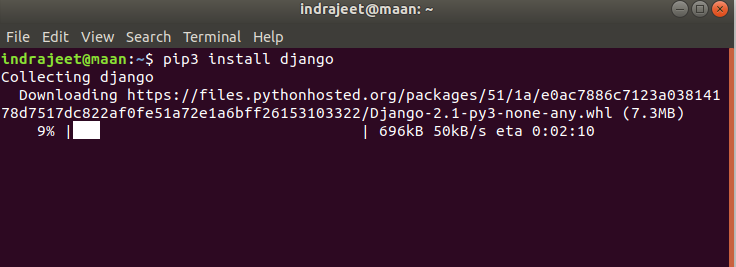
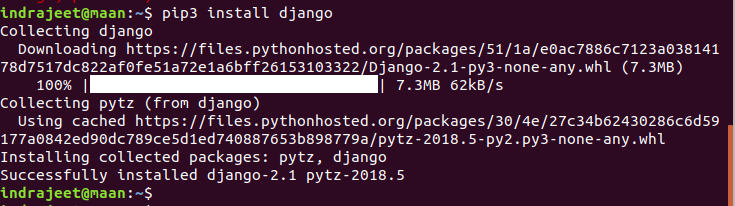
Now we will install django with pip instead of downloading straight from the website. pip basically allows us to take other people’s Python code and bring it into our project, so that we can use it. So django can actually be downloaded into our computer as one of these pip packages.

Note: pip comes bundled automatically with Python 3. So that’s why we have to make sure that we should have Python 3 and we also need it because thats the only version that work with django 2. If you got Python 3 in your system then you also got pip installed in your system.

How to Install Django on Windows, Linux,  Mac

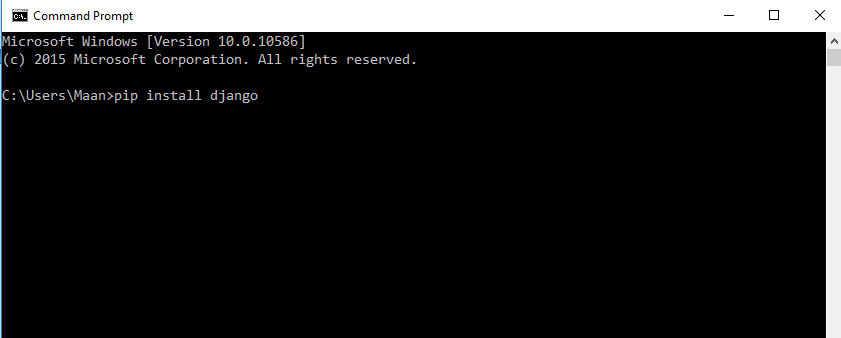
1. Open terminal or command prompt

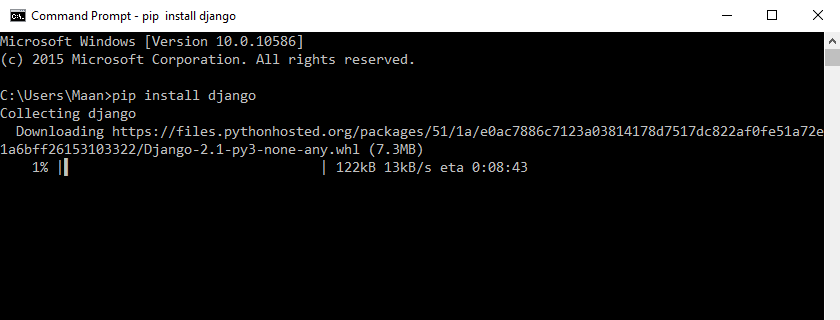
2. Type the command below and hit enter. Make sure you have internet connection.

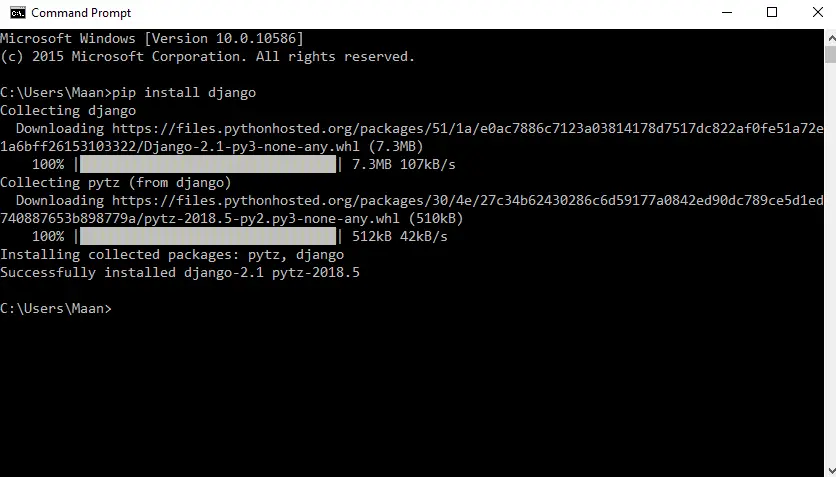
pip install django 

Now wait to install django in your system.

On other hand if you want to install a specific version of django in your system or let’s say you want to install django 2.0.2 then our command will be like:

pip install django==2.0.2

If anytime you want to uninstall django from your computer then you can simply type:

pip uninstall django

There is no need to give any specific version of django while uninstalling it.

Note: If you have both versions of Python (Python 2 and 3) installed in your system then to download the latest version of django please use pip3 instead of pip. If you use pip not pip3 then it will download the compatible version for Python 2, which is django 1.11.15 currently.

Let’s see screenshot of installations.

Linux or Mac (Installation Screenshots)

Install Django Linux 1

Install Django Linux 2

Install Django Linux 3

In Windows (Installation Screenshots) 

Install Django Windows 2

Install Django Windows 3

Install Django Windows 4

If you are having any problem with any step of django installation then please comment below, we’ll reply as soon as possible.

The post How to Install Django on Windows/Linux/Mac appeared first on The Crazy Programmer.

from The Crazy Programmer https://www.thecrazyprogrammer.com/2018/09/how-to-install-django.html

Interesting bugs – MSB3246: Resolved file has a bad image, no metadata, or is otherwise inaccessible. Image is too small.

I got a very strange warning recently when building a .NET Core app with “dotnet build.”

MSB3246: Resolved file has a bad image, no metadata, or is otherwise inaccessible. 

Image is too small.

Interesting Bug used under CC https://flic.kr/p/4SpmL6Eek! It’s clear, in that something is “too small” but what? A file I guess? Maybe it’s the wrong size?

The error code is MSB3246 which is nice and googleable/searchable but it was confusing because I couldn’t figure our what file specifically. It just felt vague.

BUT!

I had recently been overclocking my machine (overly aggressively, gulp, about 40%) and had a very nasty hard reboot. As a result I had a few dozen files get orphaned – specifically the files were zero’ed out! Zero is small, right?

Turns out you can pass parameters over to MSBuild from “dotnet build” and see what MSBuild is doing internally. For example, you could

/fileLoggerParameters:verbosity=diagnostic

but that’s long. So how about:

dotnet build /flp:v=diag

Cool. What deep logging do I see now?

Primary reference "deliberately.zero.bytes.dll". (TaskId:41)

13:36:52.397 1:7>C:\Program Files\dotnet\sdk\2.1.400\Microsoft.Common.CurrentVersion.targets(2110,5): warning MSB3246: Resolved file has a bad image, no metadata, or is otherwise inaccessible. Image is too small. [S:\work\zero-byte-ref\zero-byte-ref.csproj]
Resolved file path is "S:\work\zero-byte-ref\deliberately.zero.bytes.dll". (TaskId:41)
Reference found at search path location "{RawFileName}". (TaskId:41)

Now with “verbose” turned on I can see that one of the references is zero’ed out/corrupted/bad. I reinstalled .NET Core in my case and doubled checked all the DLLs/Assemblies that I was bringing in – I also ran chkdsk /f – and I was back in business!

I hope this helps someone who might stumble on error MSB3246 and wonder what’s up.

Even better, thanks to Rainer Sigwald who filed a bug against MSBuild to update the error message to be more clear. In the future I’ll be able to debug this without changing verbosity!


Sponsor: Preview the latest JetBrains Rider with its built-in spell checking, initial Blazor support, partial C# 7.3 support, enhanced debugger, C# Interactive, and a redesigned Solution Explorer.


© 2018 Scott Hanselman. All rights reserved.


from Scott Hanselman’s Blog http://feeds.hanselman.com/~/567201328/0/scotthanselman~Interesting-bugs-MSB-Resolved-file-has-a-bad-image-no-metadata-or-is-otherwise-inaccessible-Image-is-too-small.aspx

How Content Management Systems Dominate an Industry (And Why We Love Them)

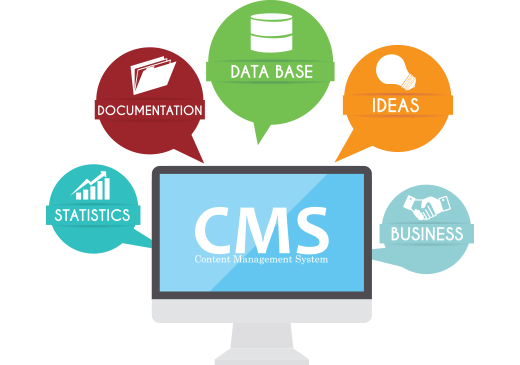
Web-based businesses and entrepreneurs rely on many products and services to help them generate leads, close sales, and handle customer service. One of these crucial, modern business investments is a content management system.

Content management systems help control content creation, distribution, and maintenance. Without a CMS, vested parties will spend hundreds of hours curating published content each year.

How impactful are content management systems? Which platforms are entrepreneurs and businesses using? Why bother with them? These questions answered in this post.

Popular CMS for Personal, Business, and Enterprise

How Content Management Systems Dominate an Industry (And Why We Love Them)

There are a dozen+ content management systems available for free and at-cost. They range from big, market-dominating projects to micro platforms providing an alternative to what many call “bloat”. Then, you have a myriad of enterprise-level offerings ideal for large workforces and heightened business needs.

WordPress (Standard)

WordPress provides your standard fare for content management features and benefits. WordPress powers over 30% of the Web, making it an increasingly popular choice for those wanting flexibility and support.

The attraction of WordPress includes:

  • No cost via open source
  • Heavily developed & supported
  • Extensive selection of themes and plugins

WordPress is ideal for individuals and small businesses. It provides a quick way to develop websites without coding knowledge through great offers from designers & developers. Or, drag-and-drop theme builders readily available alongside WordPress-friendly web hosting.

Joomla (Business)

Joomla is very much like WordPress with a few minor differences, but ultimately facilitates the same intention: building a flexible website. The draw of Joomla (and other business-tier) content management systems is its inherent security features.

Other reasons why businesses would use Joomla include:

  • Ease-of-use
  • SEO-friendly “out of the box”
  • Robust framework and support

A business may want to explore Joomla simply for its lesser footprint in the CMS market. This makes it less of a target for hackers.

Zesty (Enterprise)

Zesty.io was built to facilitate enterprise-level needs for big businesses and corporations maintaining a variety of websites and platforms. This content management system intertwines multiple websites and accounts within a central dashboard. It houses rich features ideal for businesses divided into various sectors, in need of cross-effort campaigns and ventures.

Zesty’s benefits include:

  • Rapid website creation
  • Strong cross-device compatibility
  • Complete SaaS integration

Zesty is a great fit if you’re operating a globally recognized brand. Or, if you see your business obtaining international reach within the coming years.

CMS’s: How They’re Used in a Business Environment

Those familiar with a content management system probably associate them with blogging and small business websites. Their features and benefits extend beyond a basic setup, though, becoming virtually anything a business needs!

A big business will use a CMS based on how most:

  • Easily publish content
  • Solicit and track engagement

But what really makes the platforms worth their while is how they scale online operations. The content management system becomes a central hub for online activity when connected to third-party services like CRM tools and social media accounts.

For example:

  • Distributed Campaigns. A published post is scheduled to automatically share to the internal promotions team, and to social accounts. This rapidly spreads the new content/promotion through a single node — eliminating overlaps and miscommunication. The campaign is worked on behind-the-scenes through user logins and the CMS backend.
  • Consolidation. A large business may operate several websites, creating new microsites for each advertising and marketing campaign. The business can log-in through one main platform and check the status of every site. There, the main team can schedule content, respond to comments, and make changes without needing to log in through several portals. This consolidates efforts saving time and resources.
  • Influencers. A great CMS could pose an opportunity for giving influencers a branded domain. There, the influencer is integrated to the business and brand, publishing content and attracting parties to the CMS-powered domain. The business retains ownership and control, yet gives plenty of flexibility to these micro-influencers to build upon advertising and marketing campaigns.

Which Content Management System is Right for You?

The best CMS, for you, would be the one to:

  • Offer flexibility
  • Easy-to-install and use
  • Continually updated

There are no “bad” choices with content management systems since they are all tools. Use whichever tool you feel best suited for your online business and project purpose. Choose the one you’re willing to learn its basics and continually strive to master its use.

Your turn: What CMS do you use with your project? Why?

The post How Content Management Systems Dominate an Industry (And Why We Love Them) appeared first on The Crazy Programmer.

from The Crazy Programmer https://www.thecrazyprogrammer.com/2018/08/how-content-management-systems-dominate-an-industry.html

Introduction to Django

Hello everyone, from today we’re going to start a new tutorial series on Django framework. In this tutorial we will cover basic introduction of Django. Before start to learn, lets have a look on some most frequently asked questions about Django. These questions will help you to understand that what actually Django is.

  1. What is Django?
  2. Why use Django?
  3. How does Django work?
  4. Is Django stable?
  5. What are the requirements to learn Django?

So let’s answer these questions one by one.

Introduction to Django

Image Source

Introduction to Django

What is Django?

Django is open-source and free web framework. It is written in Python language. It was created about 13 years ago (21 july 2005) and the latest and stable release Django 2.1 is out this year (1 august 2018) with a whole new set of features and capabilities. It is maintained by the Django Software Foundation, an independent organization established as a 501 non-profit. Django is a framework for web developers, it provides amazing infrastructure required for database-driven websites that have user authentication, content administration, file uploads, and much more.

We doesn’t have to create all these features from sratch, we can use Django framework and utilize these components that are already built-in there, so we can save a lot of time by using these inbuilt components. If you love to working  with python, especially for web application or web design, then you should learn the Django framework.

Why use Django?

We already have seen that how it saves a lot of time for us. There are some another reasons to use Django framework.

  1. Components: It is a light weight and stand alone web server where we can develop and test our project, a template system that uses the concept of inheritance from OOP, supports caching the data into memory, supports middleware framework (a light and low level plugin which is a system for altering input and output of django), consists of an object-relational mapper (ORM) that mediates between python classes and a relational database and many other components are there.
  2. Bundled Applications: Django also includes a number of applications in its contrib package like – dynamic admin interface, an extensible authentication system that follows EAP (extensible authentication protocol), tools for creating Atom (web feeds) and RSS, tools for producing google sitemaps, a site’s framework which allows us to install django only once and run more than one websites, having different contents, inbuilt tool to reduce cross-site scripting, cross-site request forgery, SQL injection, cracking password and mitigate other web attacks.
  3. Extensibility: Django allows us plug the third party code into a regular project, so that it can be re-used. There are around 2500 packages to extend the framework’s original behavior.

There are many other reasons to use Django framework, which will you know while learning it.

How does Django work?

It can be broken into several components like Models.py, URL.py, Views.py files. Each file have their own specification like Models.py defines our data model by extending your single code line into full database tables and add a pre-built administration section to manage content, while on other hand Views.py is the main part of Django. Actual processing happens in view. We’ll discuss it later in detail.

Is Django stable?

Of course, Django is stable. Most of the companies are using it. Some of them are:

  • Bitbucket
  • Instagram
  • Pinterest
  • Mahalo
  • The washington post’s webstite

What are the requirements to learn Django?

You should be familiar with basic syntax of Python, functions, importing external modules, conditional operator, loops, Regular Expression, data structure like tuple, set and dictionary, and a computer to work with.

That’s all for this article, if you have any problem or question related to introduction to Django then comment below, we’ll reply as soon as possible.

The post Introduction to Django appeared first on The Crazy Programmer.

from The Crazy Programmer https://www.thecrazyprogrammer.com/2018/08/introduction-to-django.html

Design a site like this with WordPress.com
Get started